JP CE Automatic TOC
Article Index
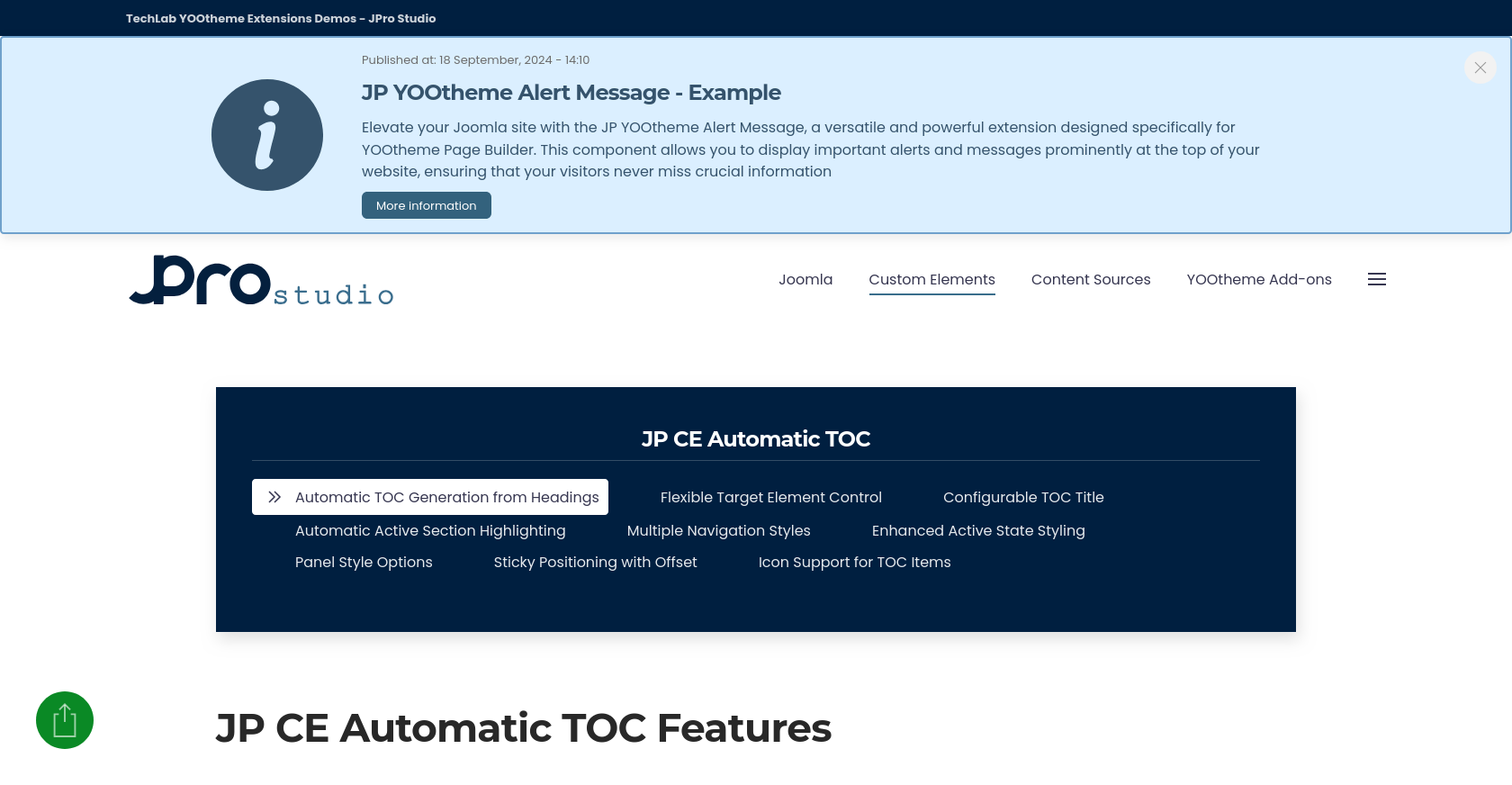
JP CE Automatic TOC provides you with an easy way to automatically generate a structured and accessible table of contents from your page headings. Using this custom element, you can improve navigation for long articles, documentation pages, help sections, and other content-heavy layouts inside YOOtheme Pro.
How to install & use:
- Download the latest version of the JP CE Automatic TOC plugin from the product page.
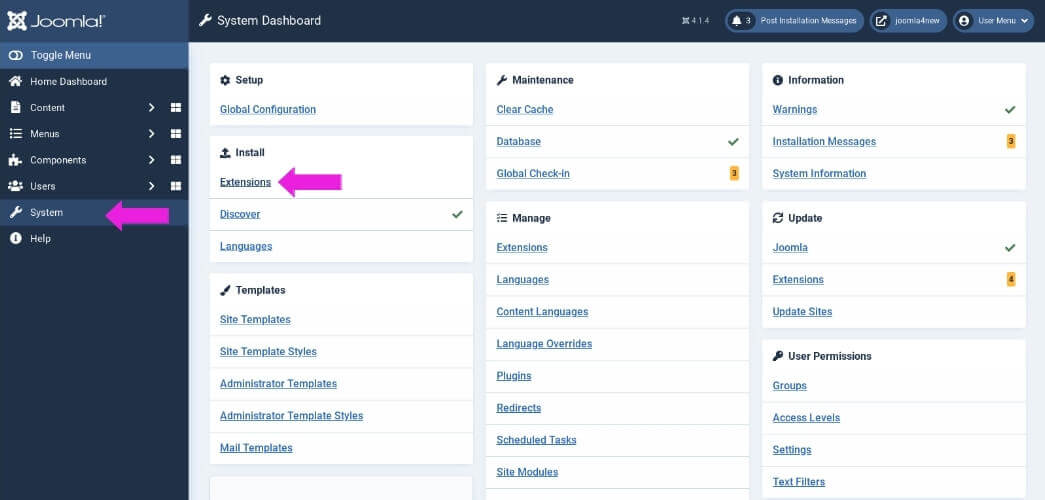
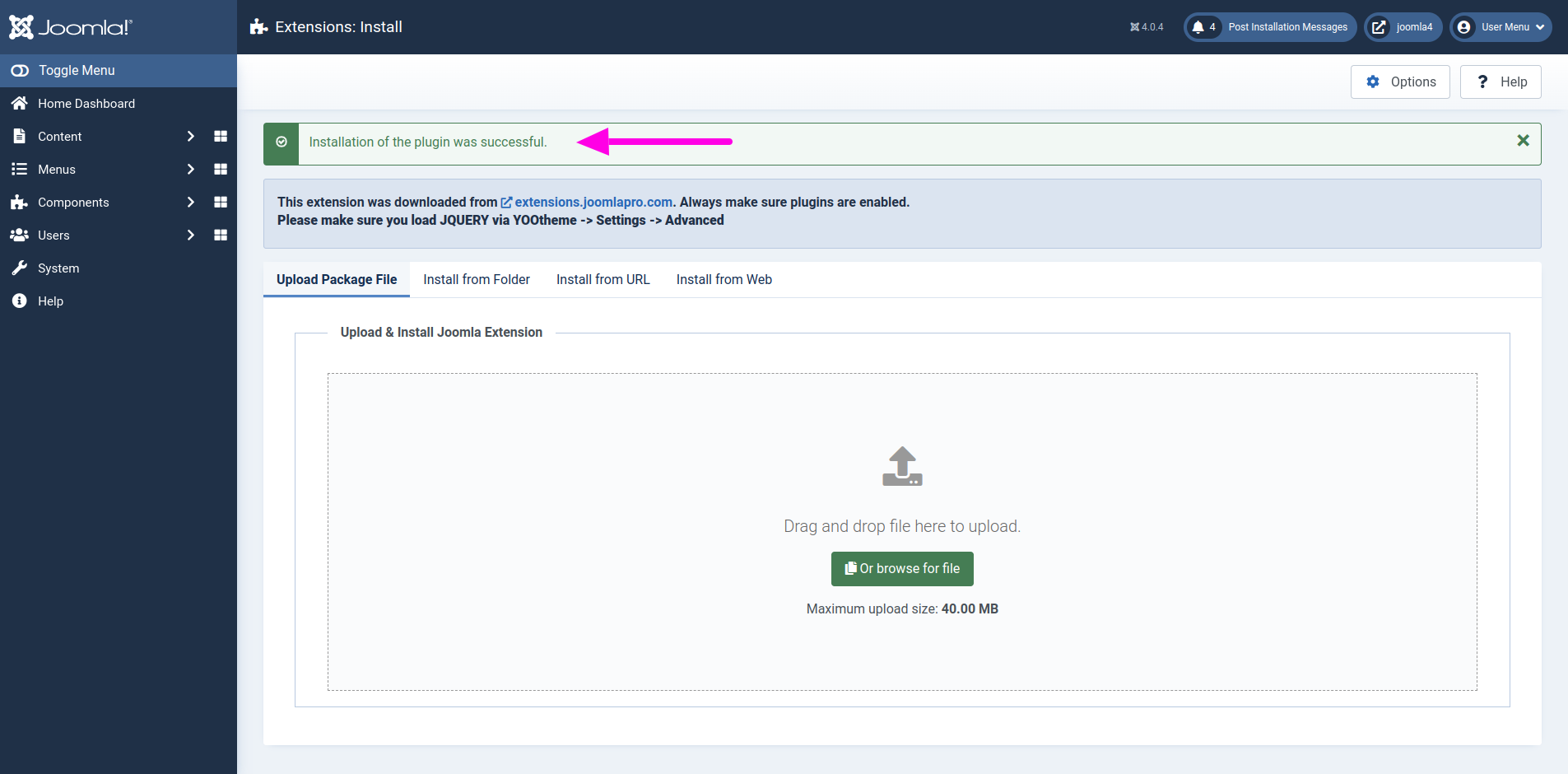
- You can install the plugin using the Joomla Extension Manager. From the Joomla administrator dashboard, click “System -> Extensions” and then upload the zip file to install the extension.
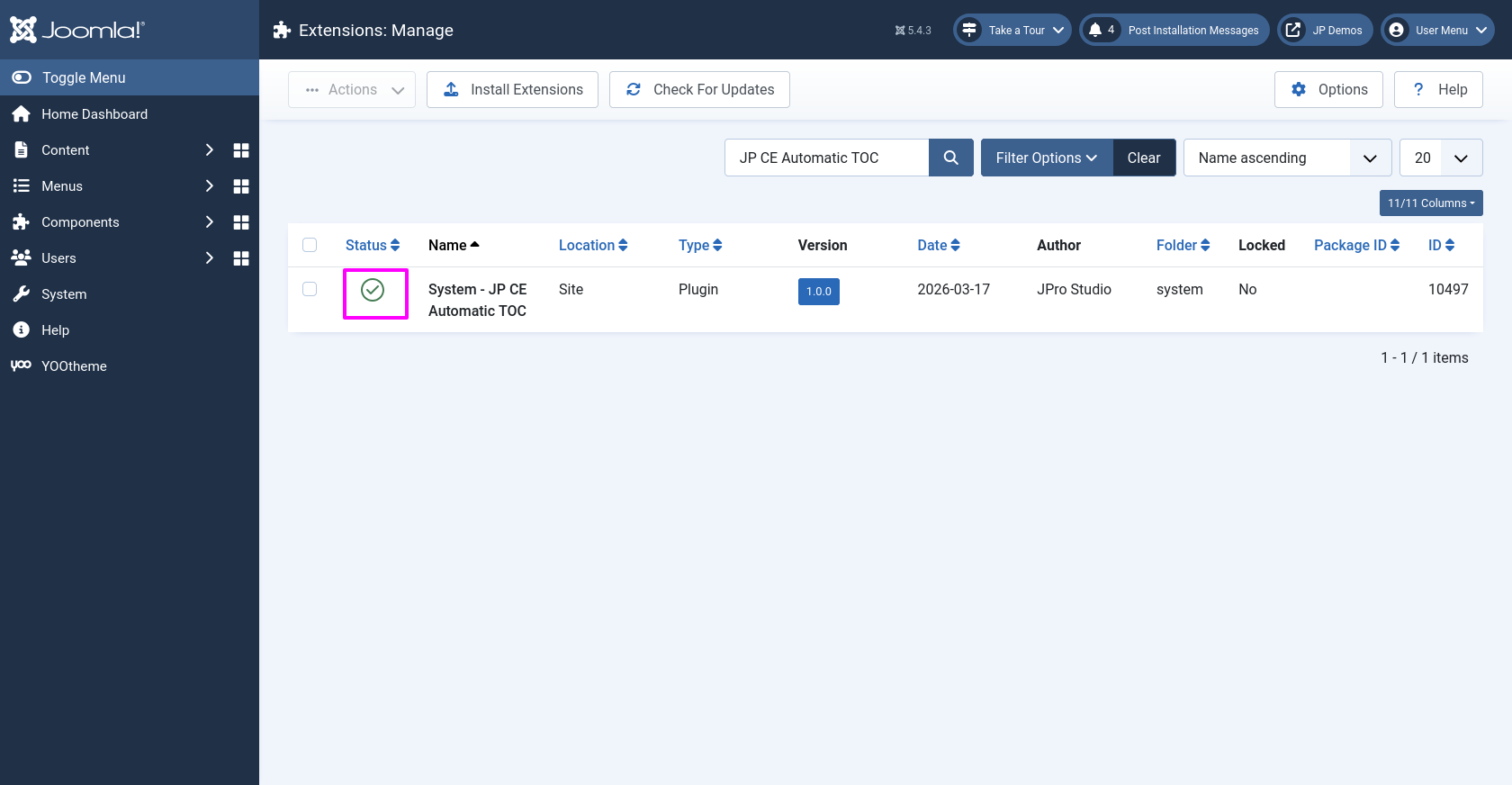
- From the main Joomla dashboard click “System -> Manage -> Plugins”. Use the Search or Filter feature to find the installed JP CE Automatic TOC plugin and then make sure the installed plugin is enabled.
How it works:
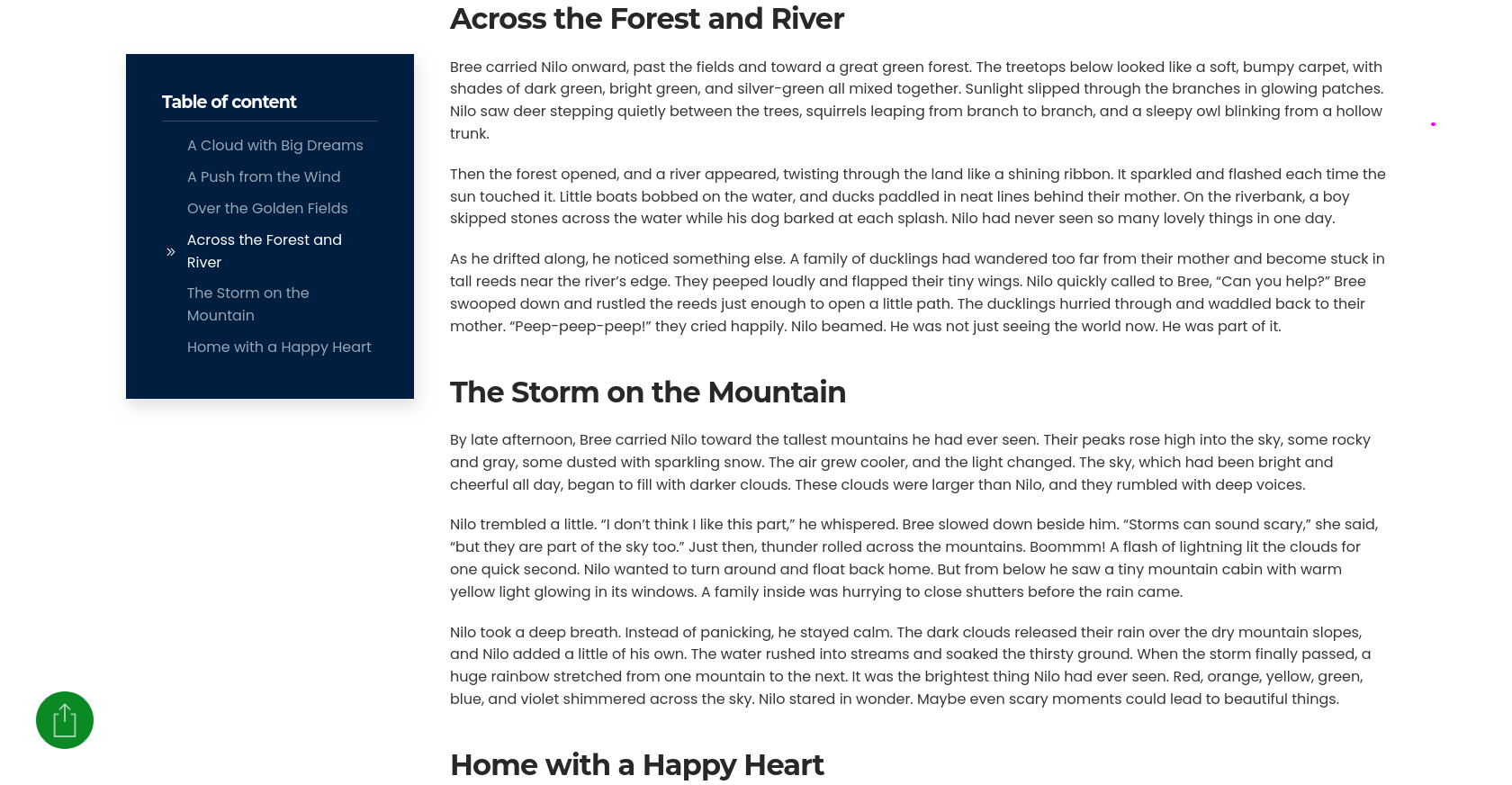
- JP CE Automatic TOC scans your page content and automatically generates a structured table of contents based on the selected heading levels or custom target elements.
- As users scroll through the page, the plugin highlights the active section automatically, making it easier to track the current reading position.
- This is especially useful for long-form pages, articles, documentation, tutorials, and any content-rich layouts where fast in-page navigation improves usability.
- The plugin is designed with accessibility in mind and follows a structured navigation approach for better user experience.
Add the new custom element:
- Now open “YOOtheme” website builder inside the Joomla administrator area and edit the page where you want to add the installed “JP CE Automatic TOC” custom element.
- Then you can easily add the installed “JP CE Automatic TOC” custom builder element from YOOtheme Pro Website Builder.
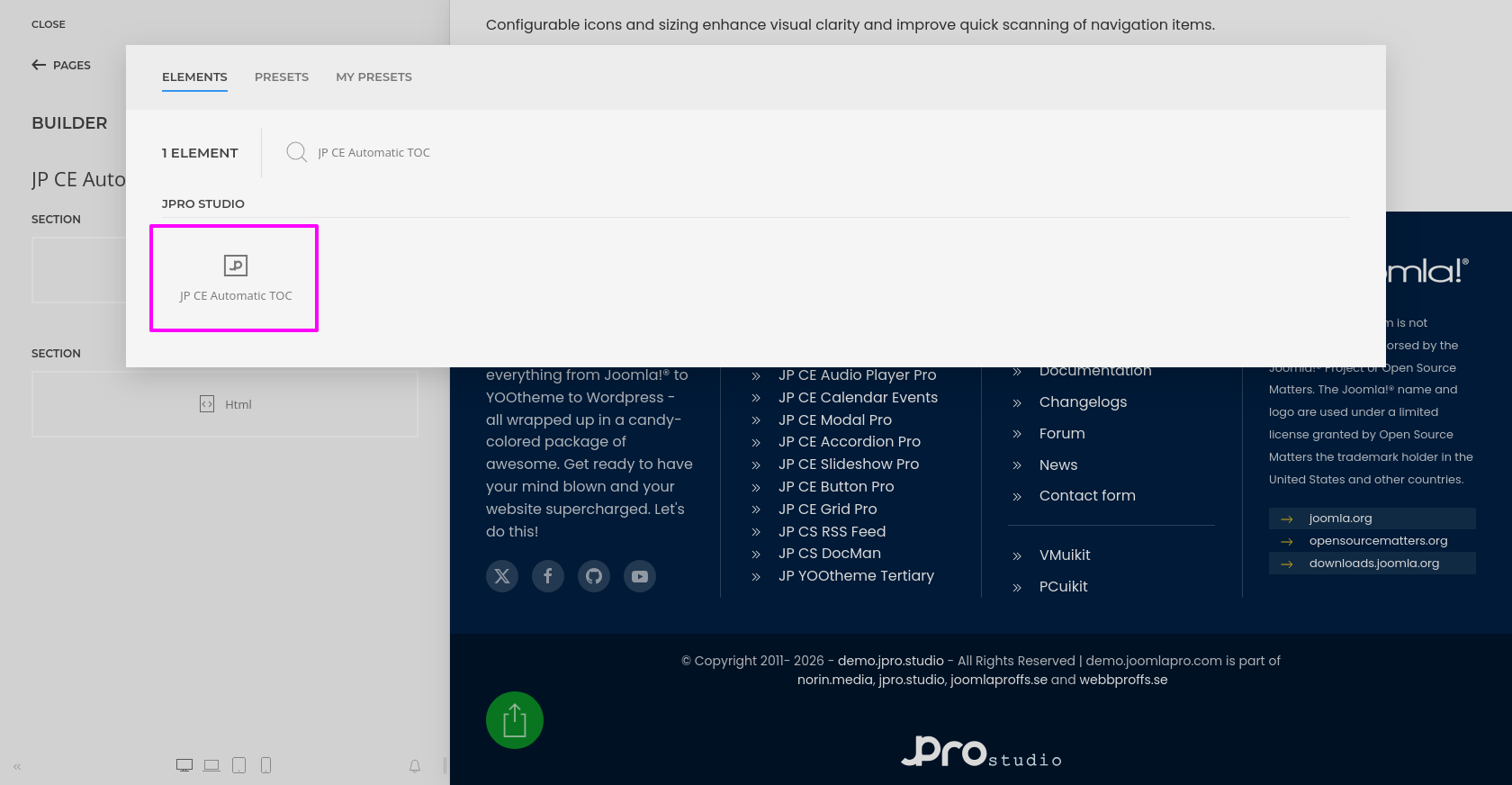
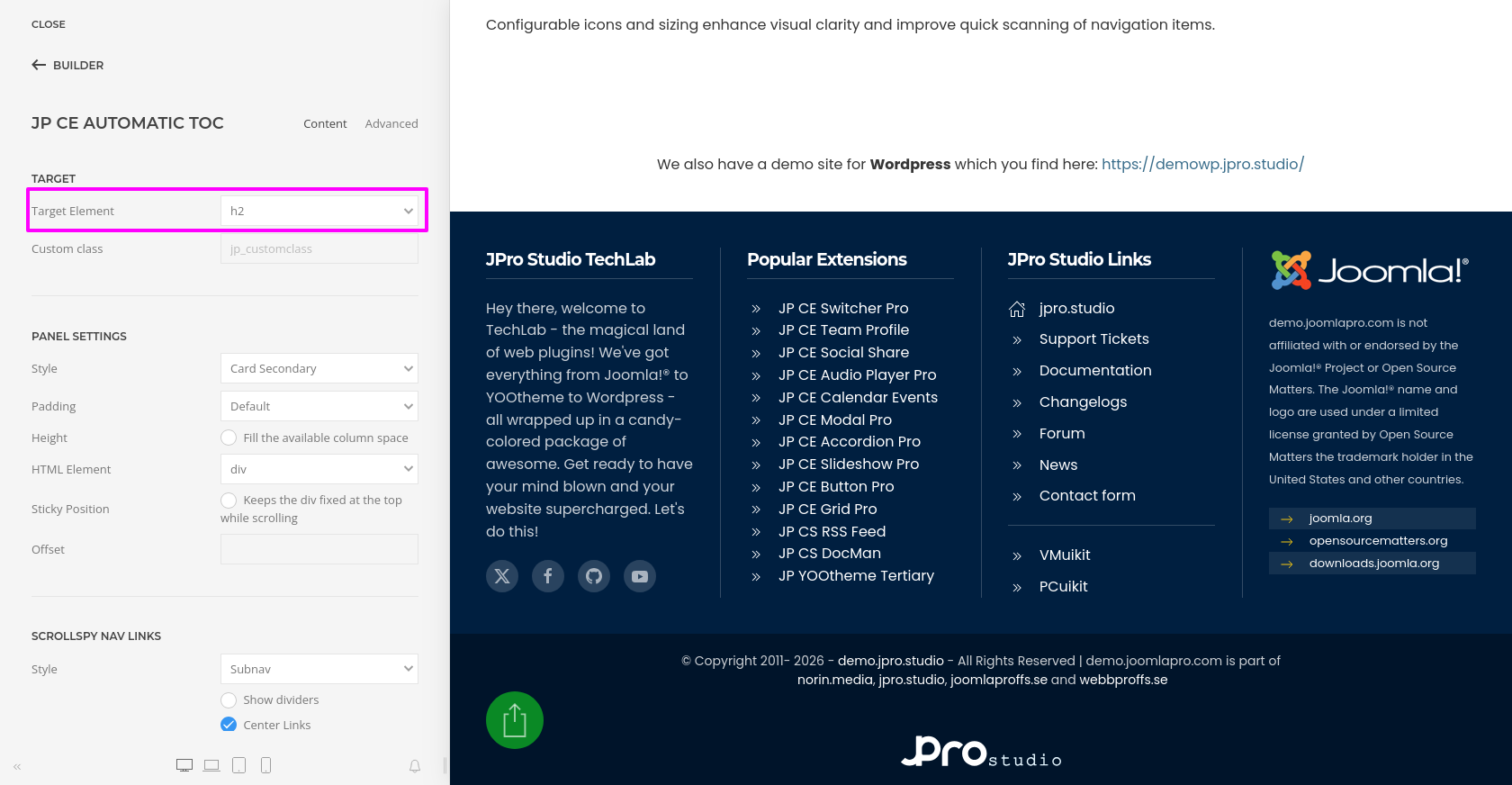
- After adding the element, choose the Target Element that should be used to generate the table of contents. You can target standard heading tags such as H1 to H6, or use a custom class for more specific control.
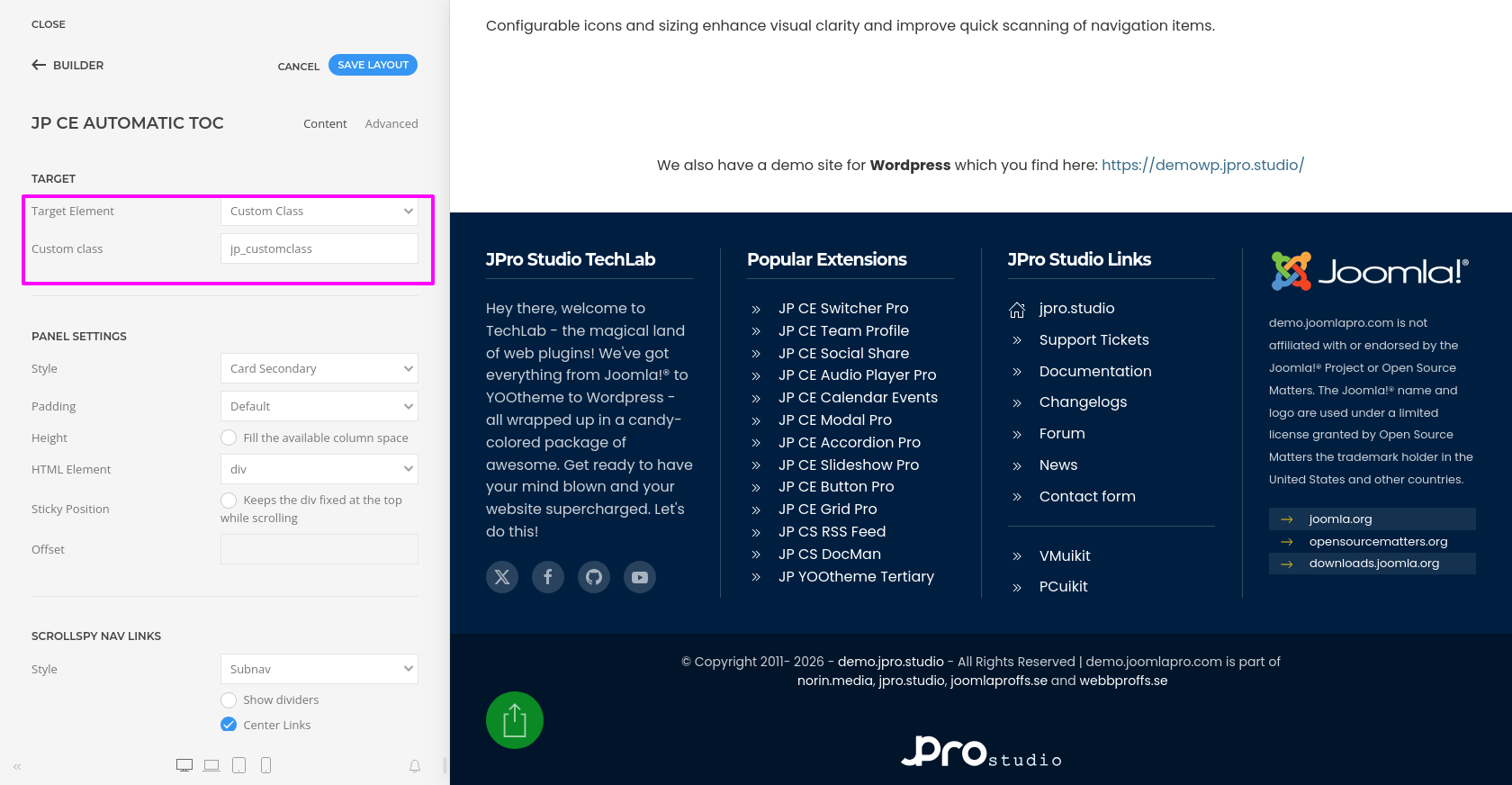
- If you select Custom Class as the target element, enter the class name so the TOC will only be generated from those specific content sections.
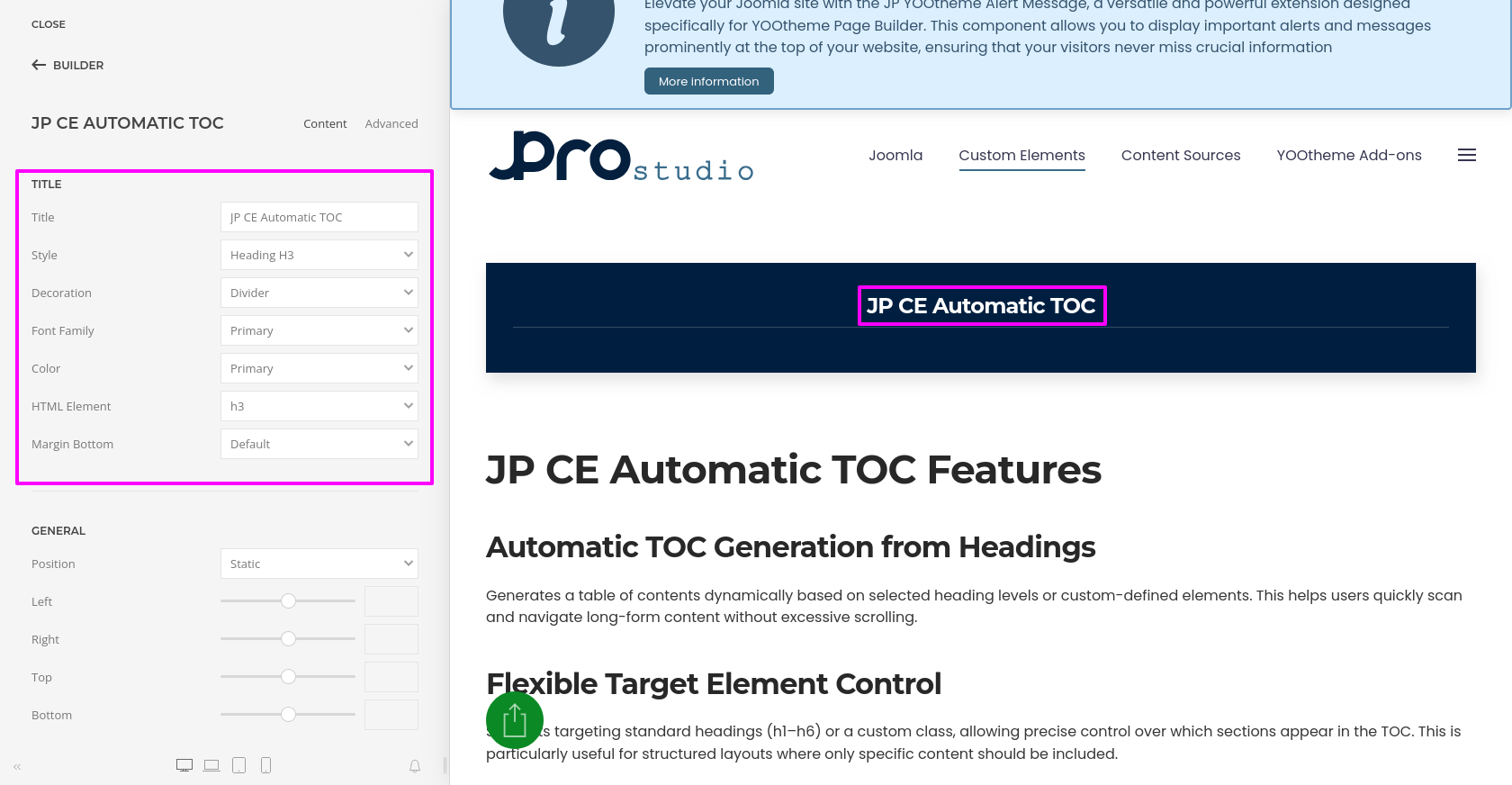
- You can add a custom TOC Title and style it to match your layout. This includes control over the title style, semantic HTML element, font, color, and spacing.
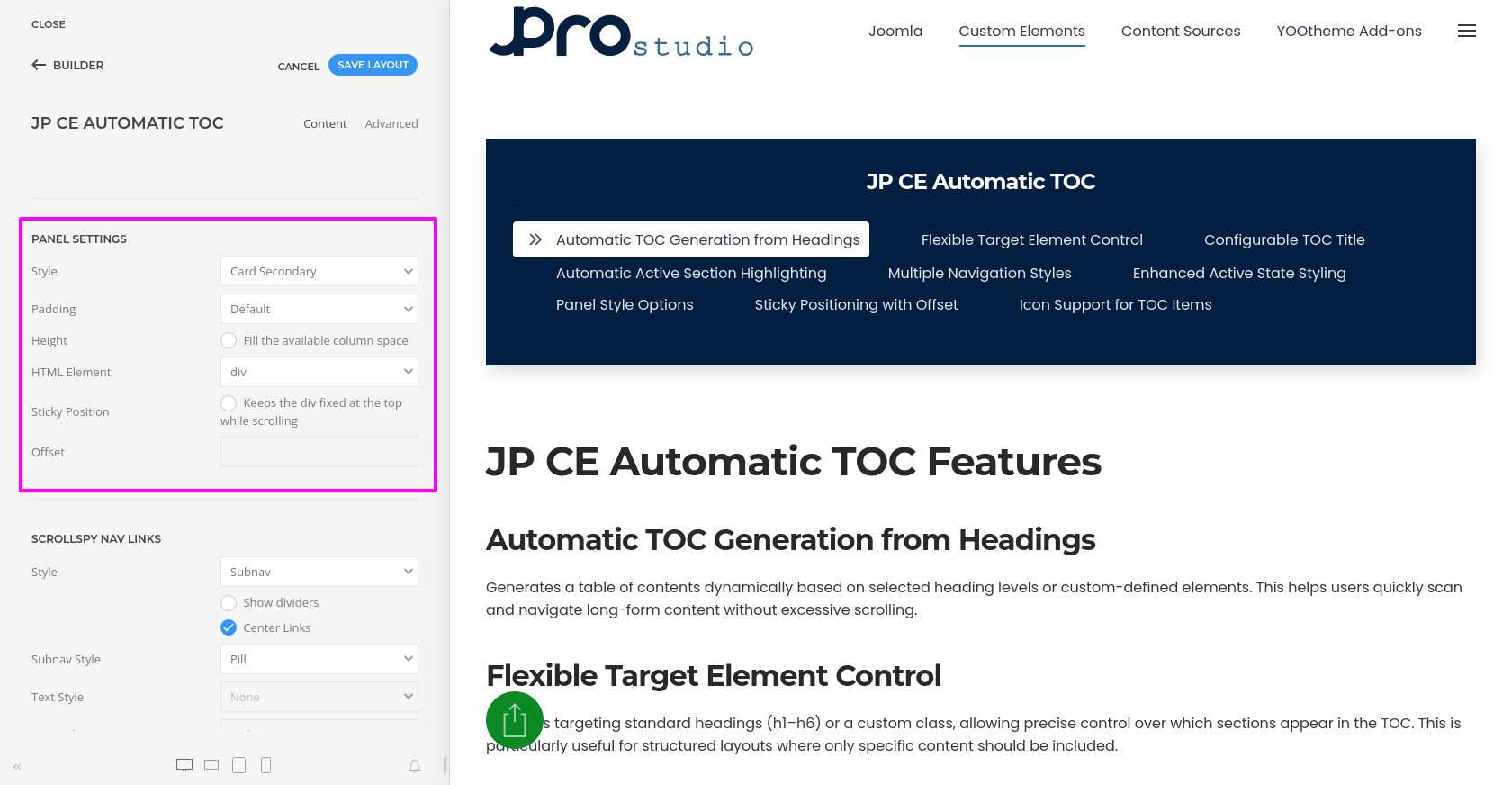
- Use the Panel Style settings to control the appearance of the TOC wrapper. You can apply card, tile, or minimal styles, adjust padding, and configure the layout to fit naturally within your page design.
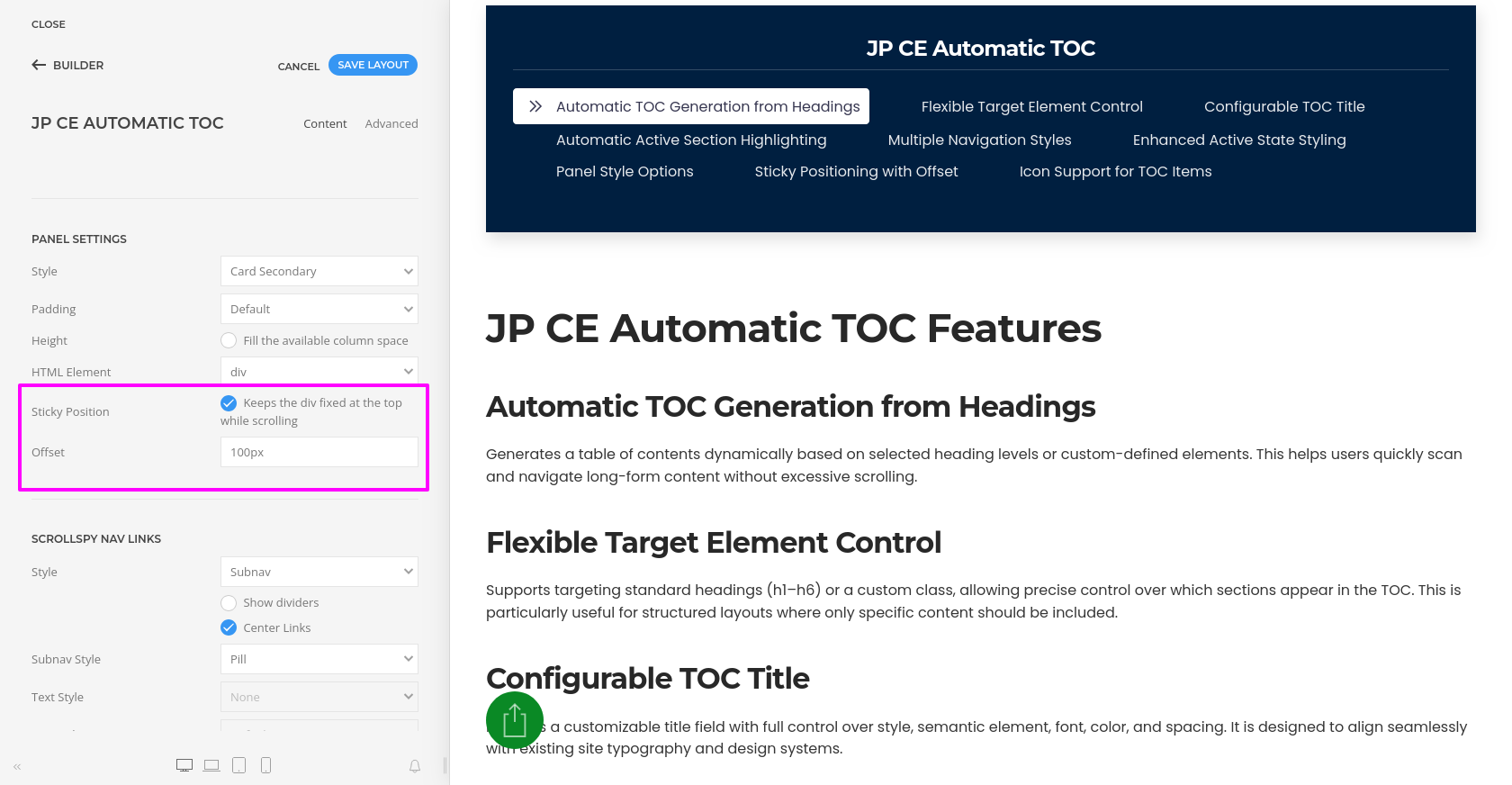
- You can also enable Sticky Position so the TOC remains visible while scrolling. Use the Offset option to prevent linked headings from being hidden behind a sticky header. A recommended value is 80px to 120px, depending on your header height.
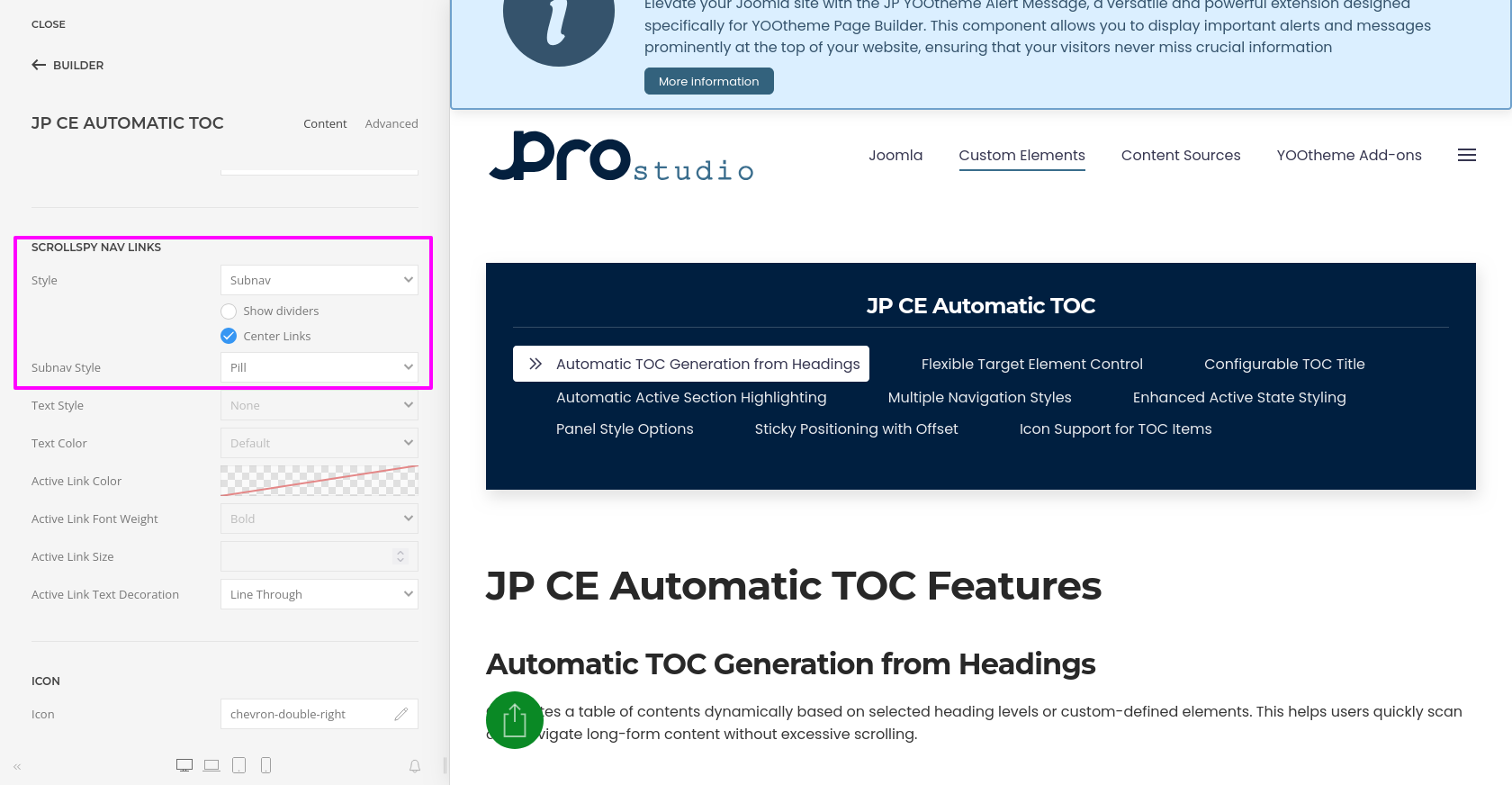
- Configure the Navigation Style for the generated TOC links. You can choose from different nav styles such as Default, Primary, Secondary, Subnav, or Custom mode depending on your layout requirements.
- For standard navigation layouts, you can further refine the display using options such as divider styles, pills, tabs, and alignment settings.
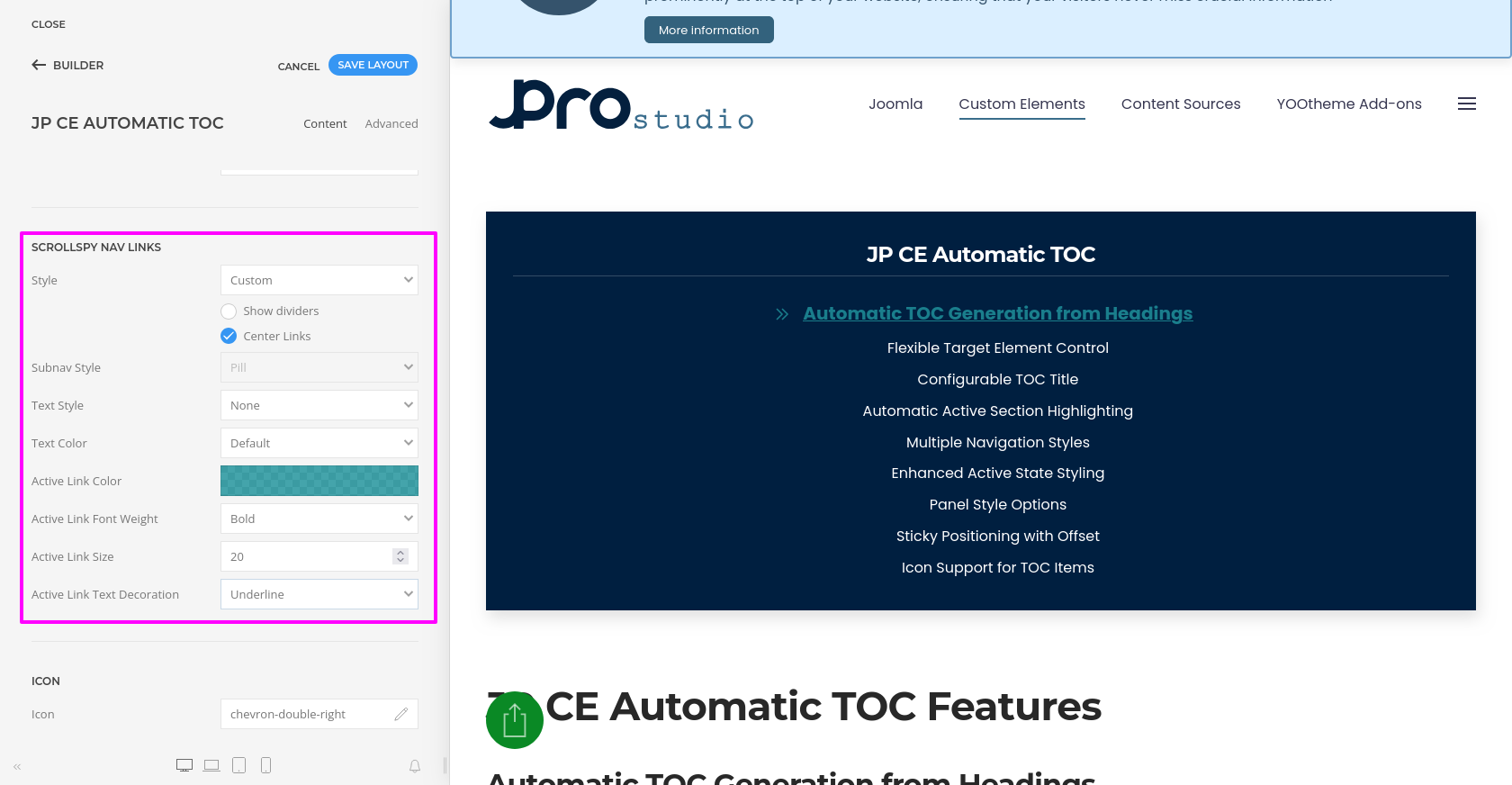
- When using Custom navigation mode, you can style the links in more detail, including text style, text color, active link color, active link font weight, active link size, and text decoration.
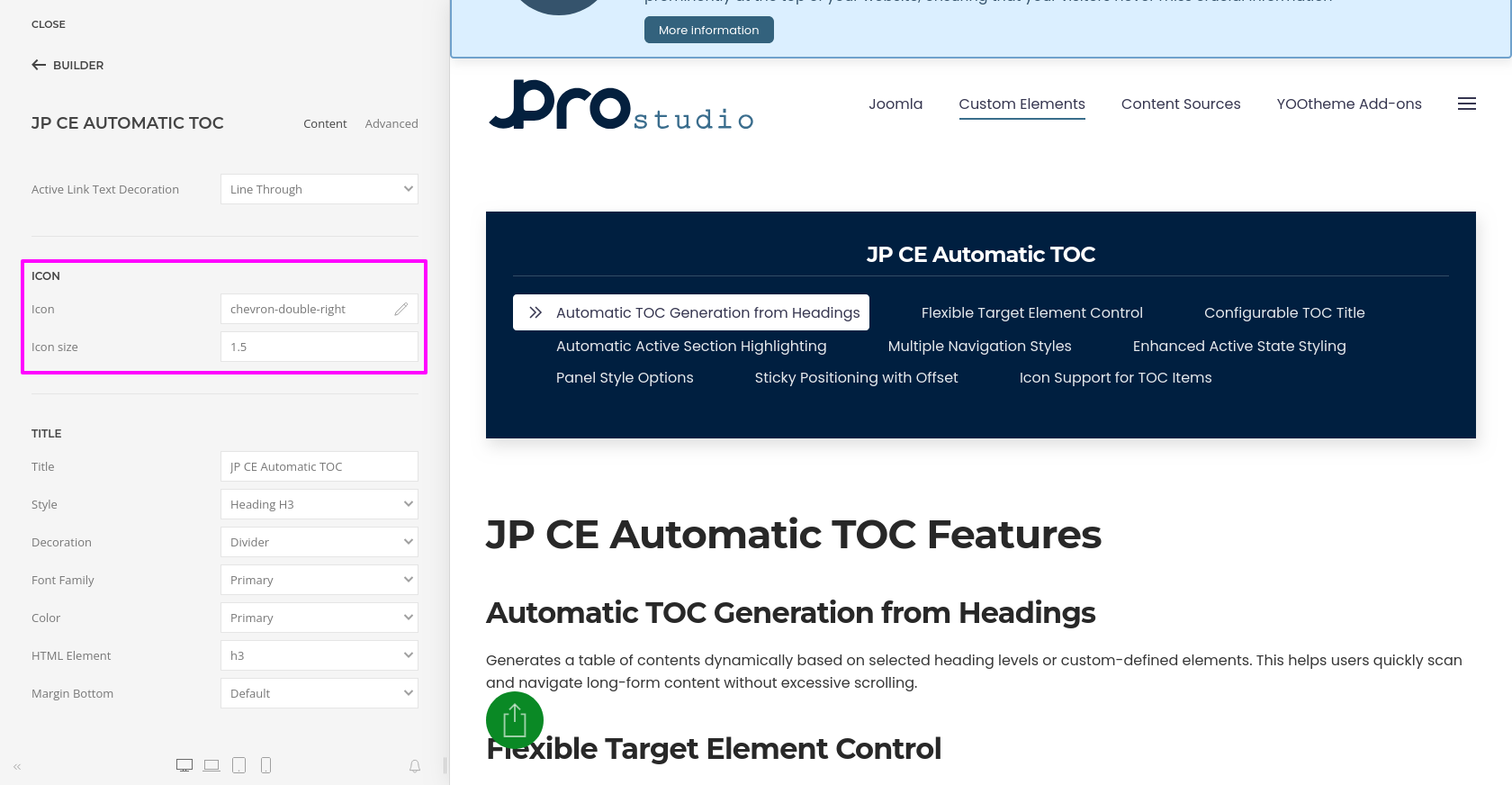
- You can also add an Icon to the TOC items and define the icon size to improve visual clarity and quick scanning.
- The element also supports the standard YOOtheme Pro builder parameters such as layout, positioning, spacing, visibility, and custom styling options.
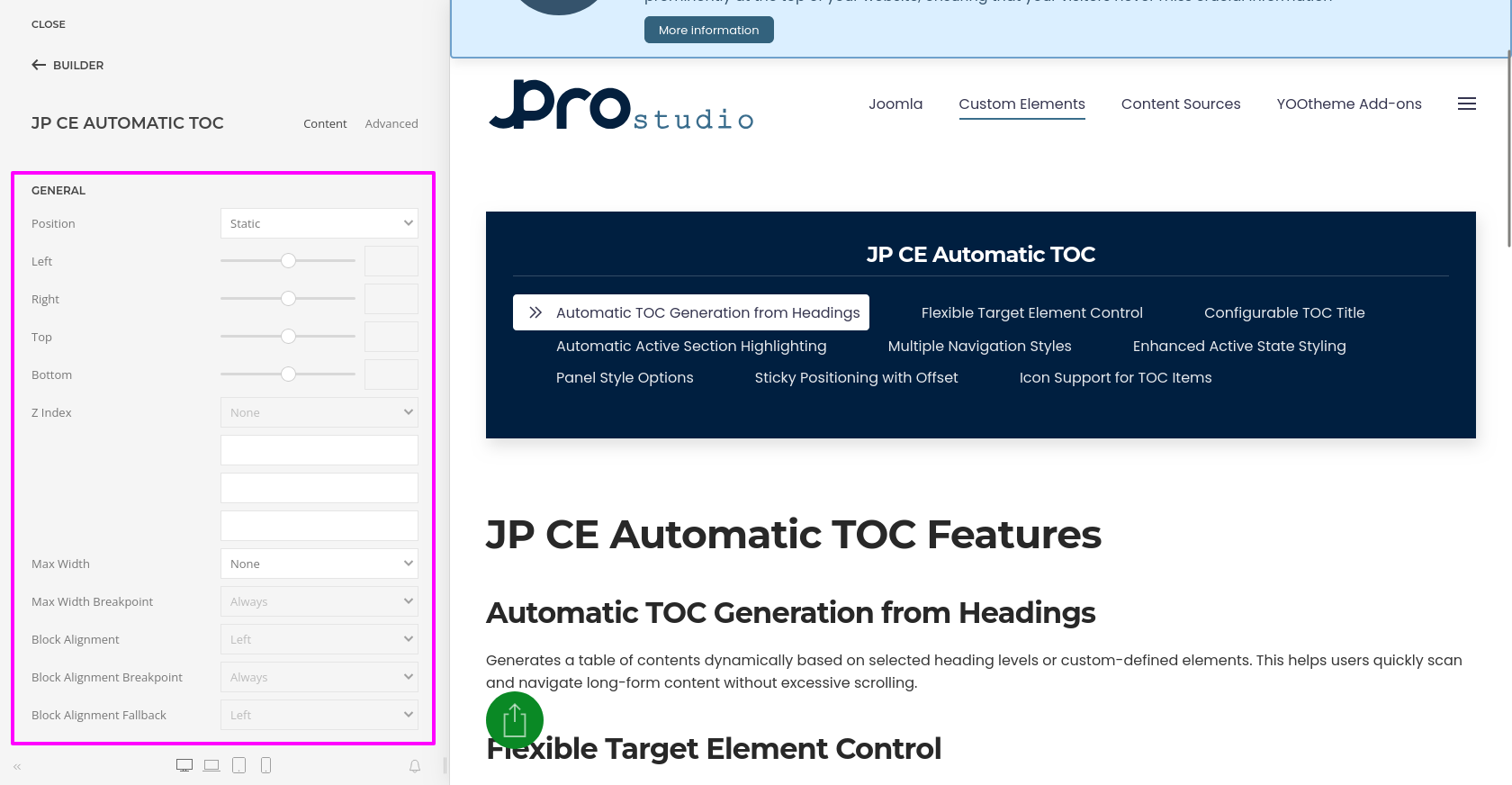
Have a look of “JP CE Automatic TOC” output.