
JP Image Prepare
Article Index
JP Image Prepare is a tool that helps you and your clients to create images in correct size and ratio for any part of your website. Create several Image Profiles with pre-set size/ratio, jpeg compression, save folder path, overlay image, watermark. Its never been easier for you and your clients to prepare a perfect image. We have integrated Unsplash.com image also to let you select from hundred of thousands image directly.
How to install:
- You install the JP Image Prepare in the "Extension Manager" (like you install any other extension for Joomla).
How to use video tutorial:
How to optimize PNG and JPEG images
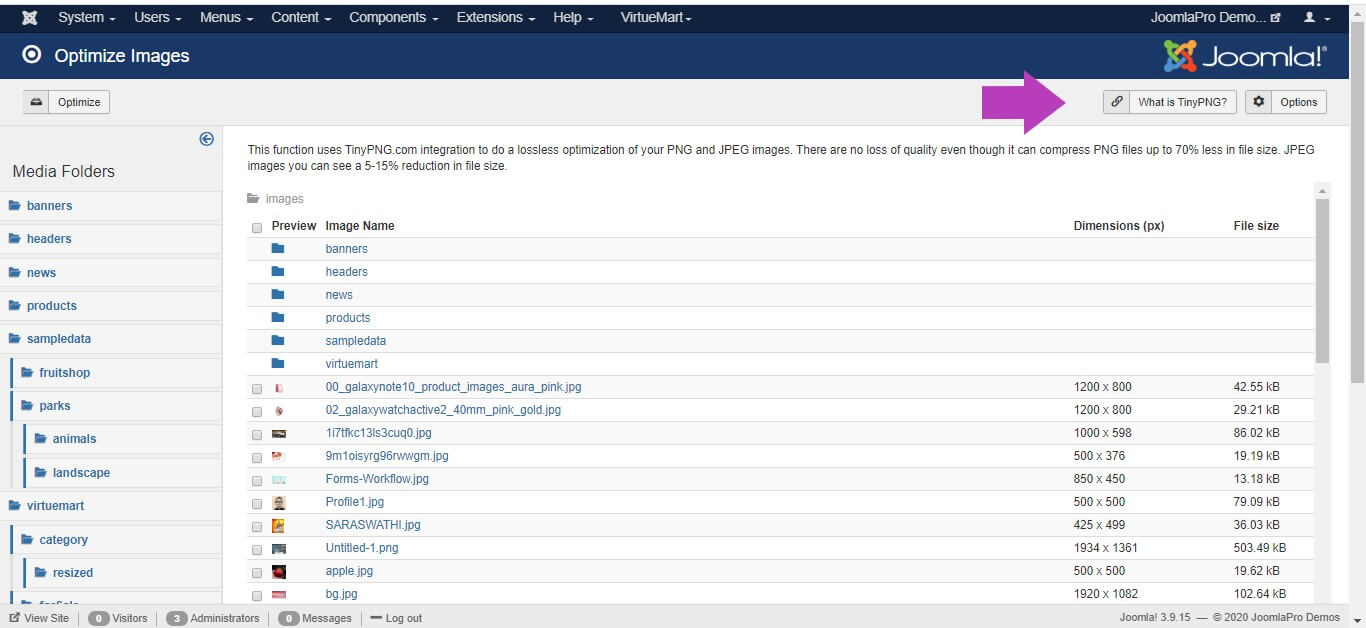
Optimize images function do a lossless optimization of your PNG and JPEG images. There are no loss of quality even though it can compress PNG files up to 70% less in file size and JPEG images you can see a 5-15% reduction in file size.
- Before started using the optimization, you should get the TinyPNG API Key from this link - "https://tinypng.com/developers" in a few seconds and fill the same in the TinyPNG API Key settings in "Options"
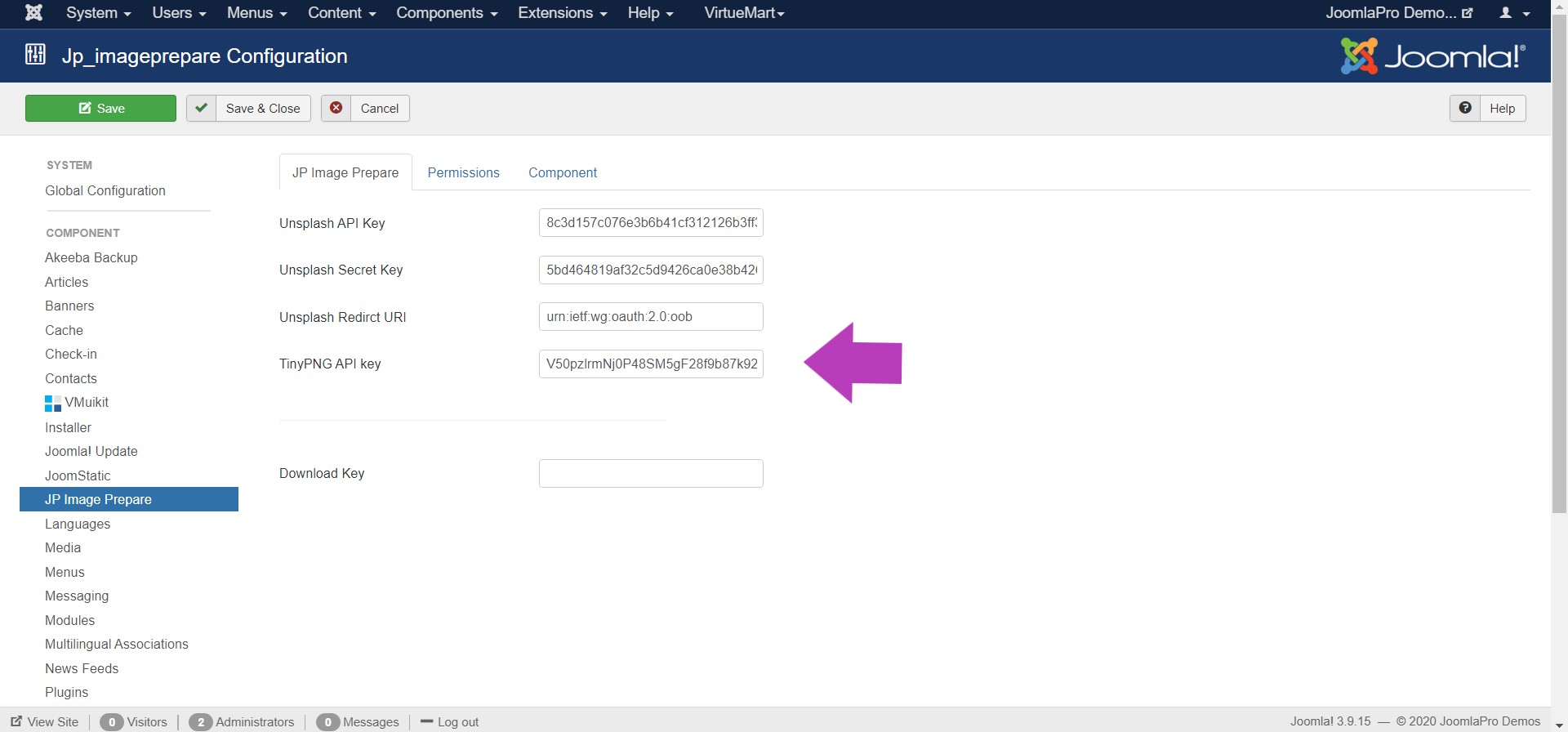
- Click “Save & Close” to save all the settings.
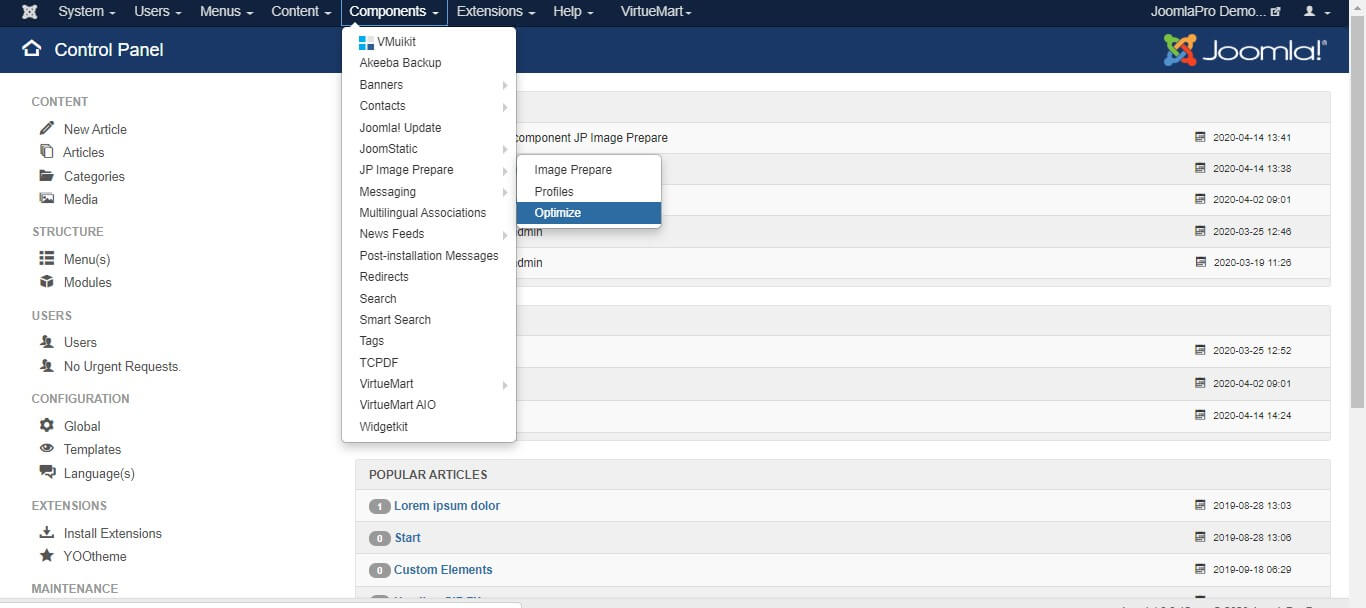
- Then go to Components -> JP Image Prepare -> Optimize
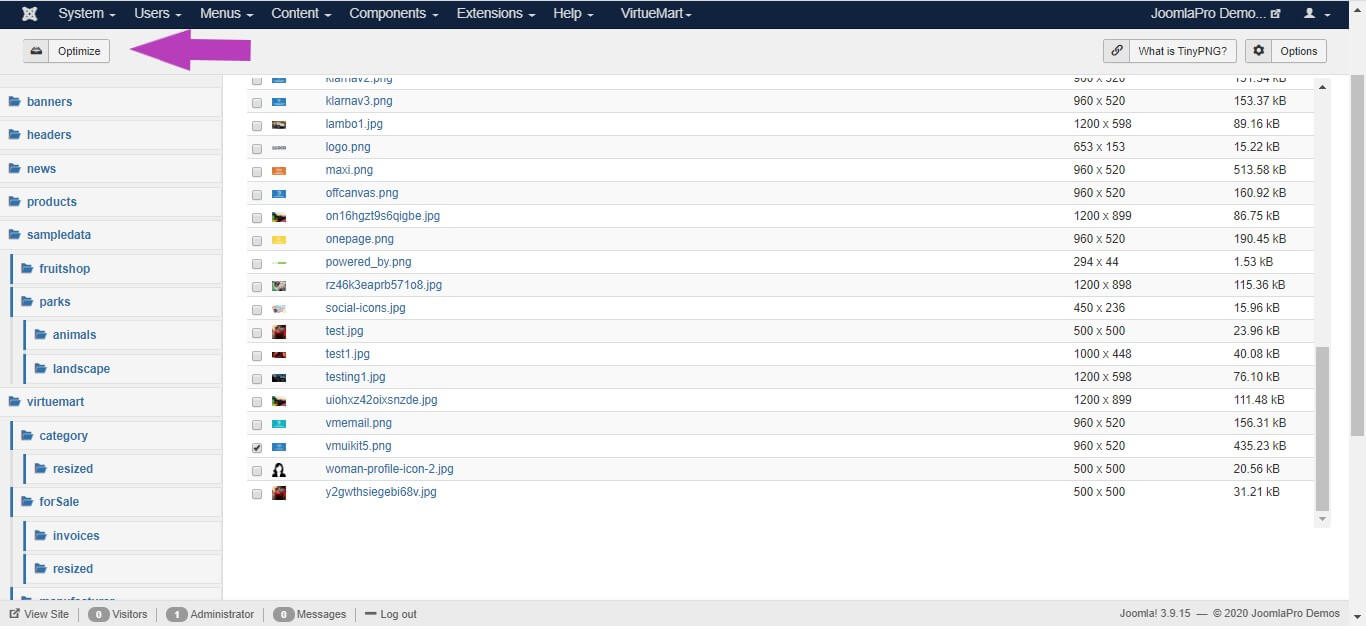
- Select the file(png or Jpeg) you want to optimize from "Media Folders"
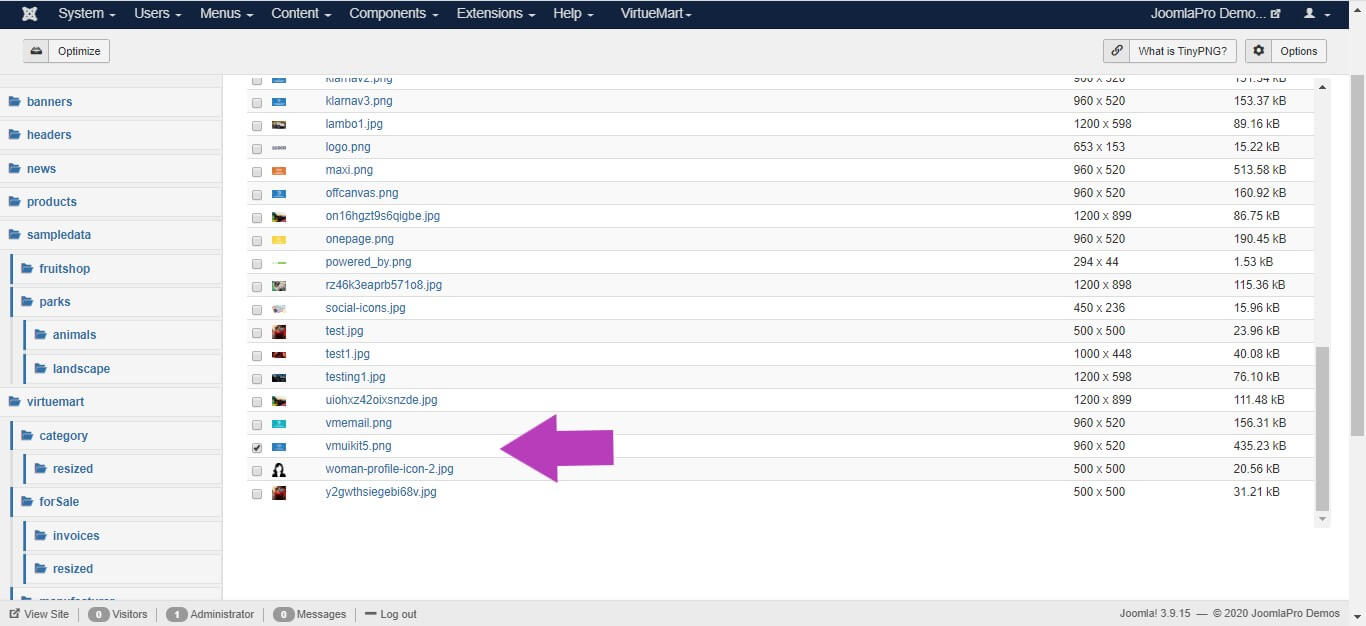
- Click the Optimize button to start the process and uploading the selected files to TinyPNG
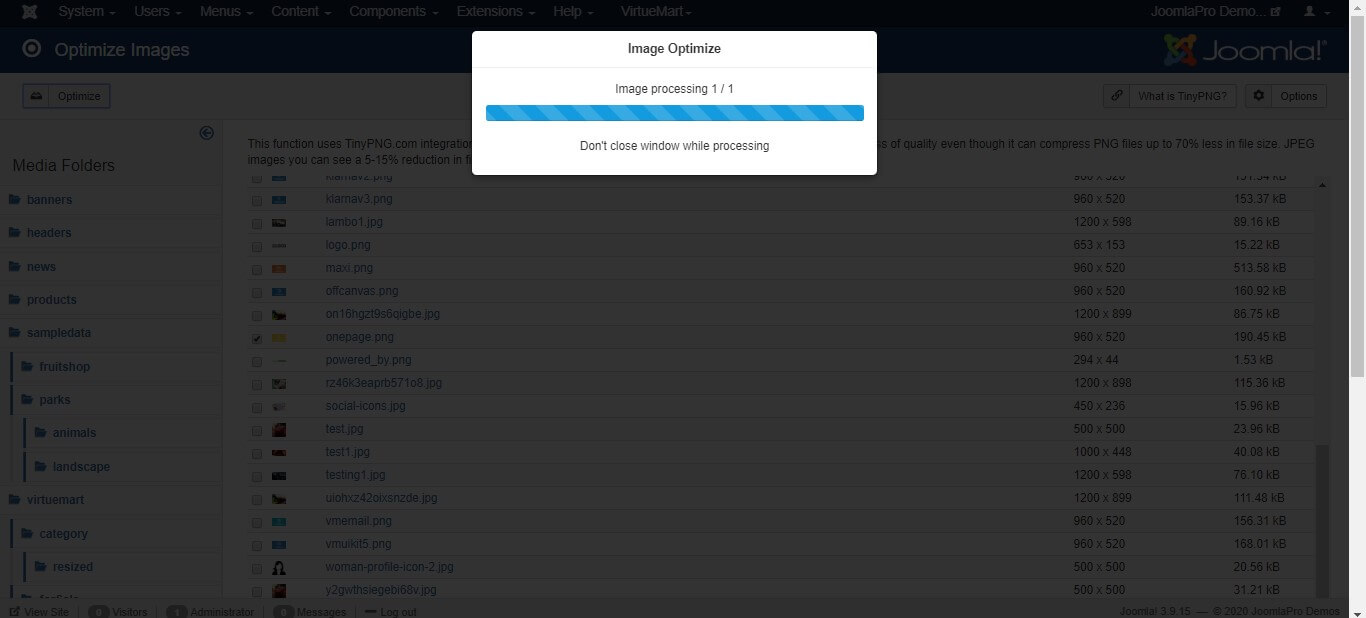
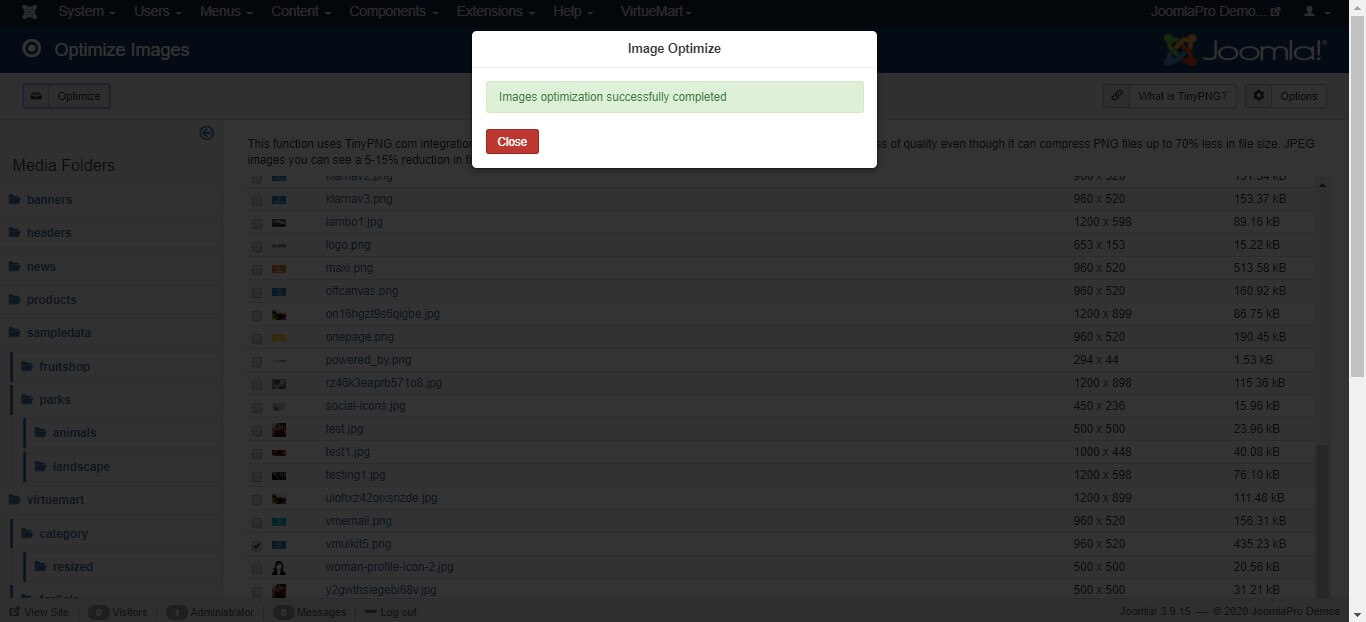
- Once optimization process finished, successful dialog message displayed and then click “Close” . Check the selected files sizes after optimization.
Using Unsplash images
Beautiful, free images and photos that you can search and use from unsplash library.
- Before started using the search unsplash function in "Image prepare", you should get the Keys from this link - "https://unsplash.com/developers" after creating one demo application and fill the same in the Unsplash API Key , Unsplash secret Key, Unsplash Redirct URI settings in "Options"
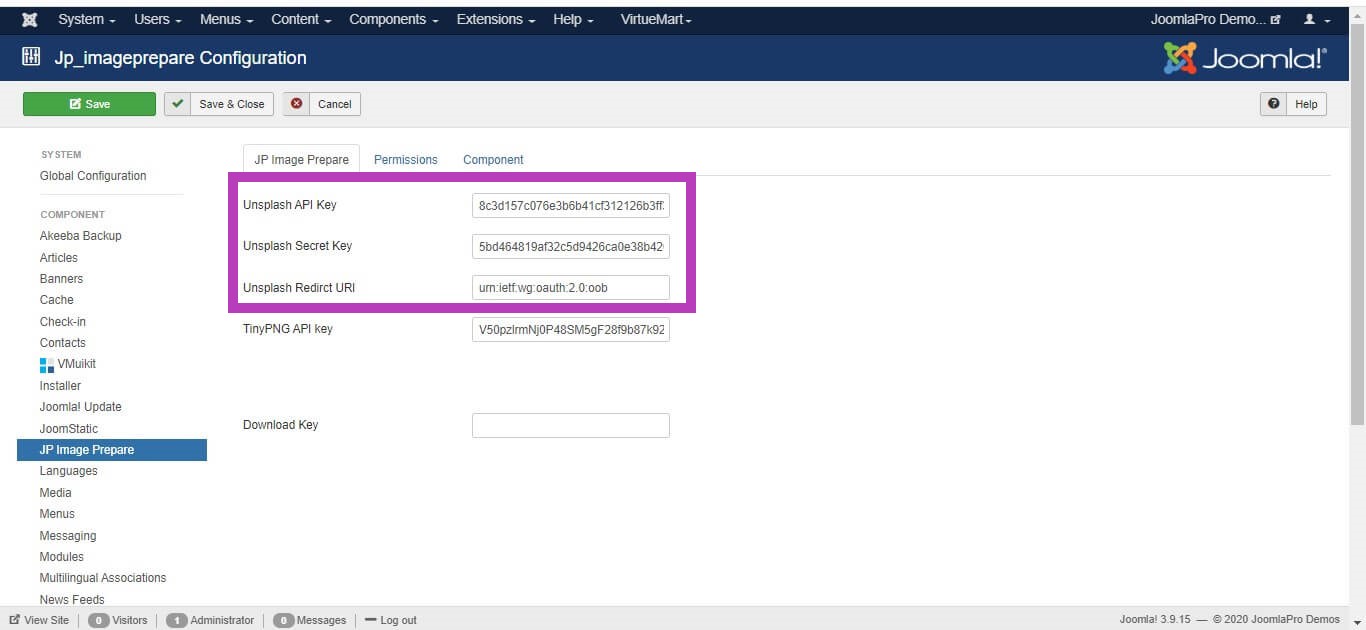
- Click “Save & Close” to save all the settings.
- Then go to Components -> JP Image Prepare -> Image Prepare
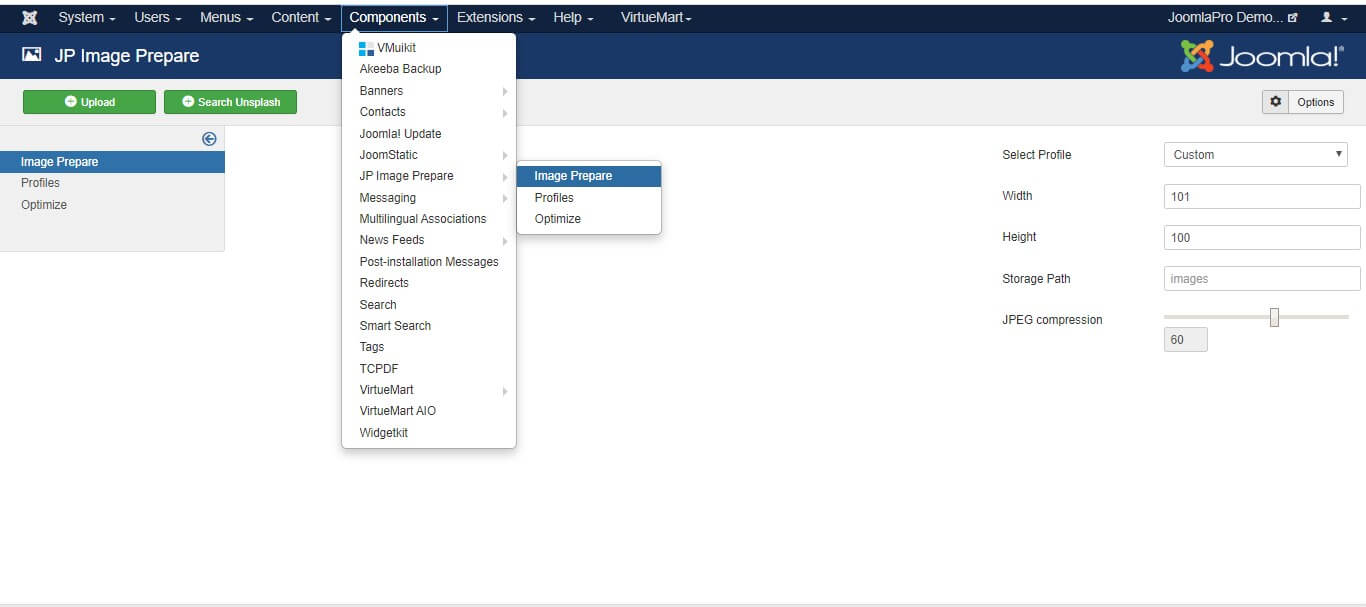
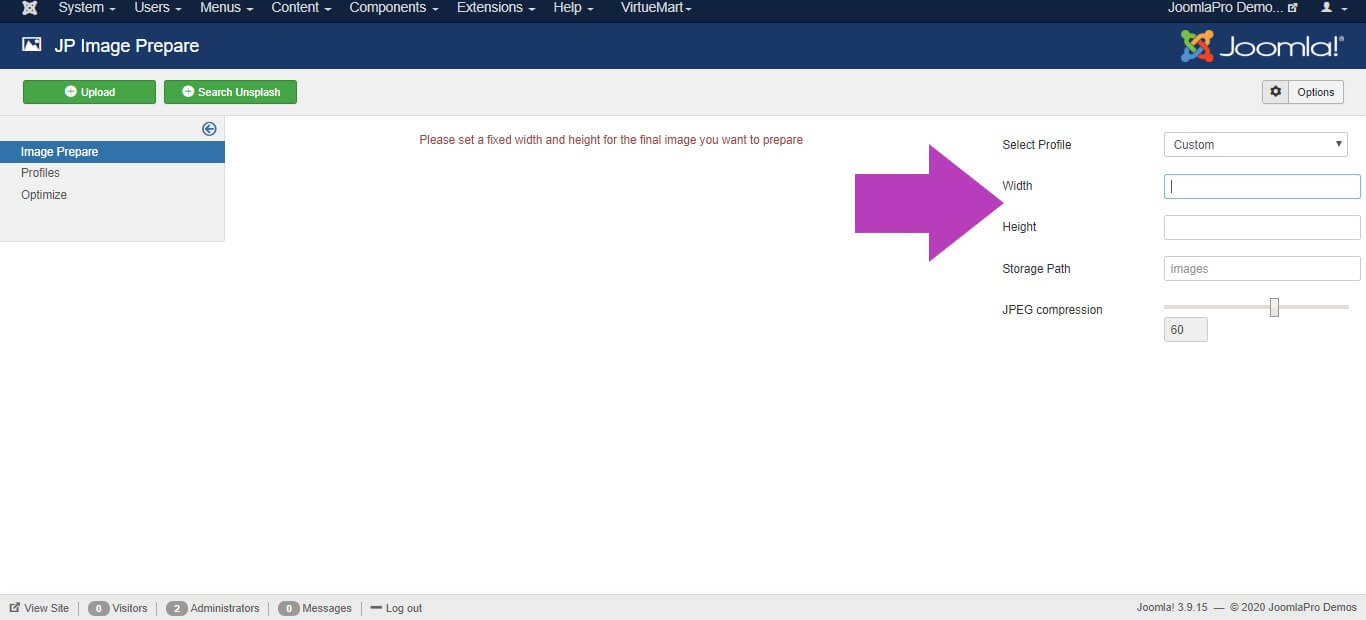
- Please set a fixed width and height for the final image you want to prepare for
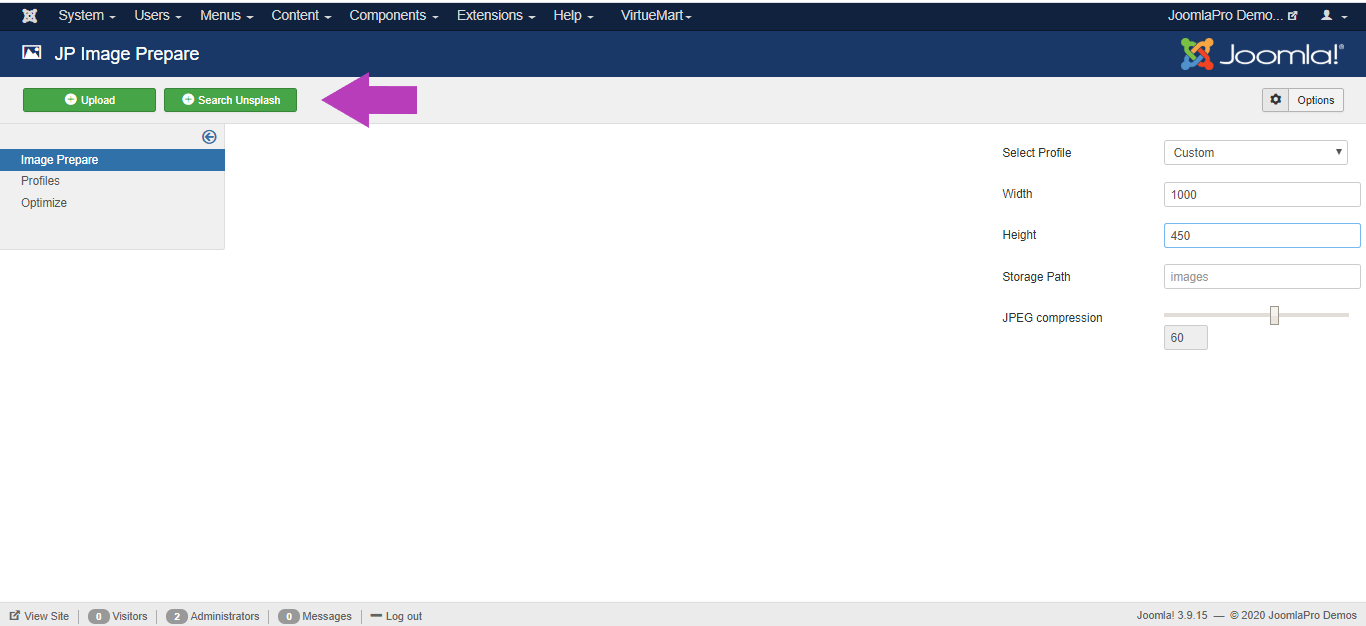
- After setting the custom width and height or select the profile, click the "Search Unsplash" button
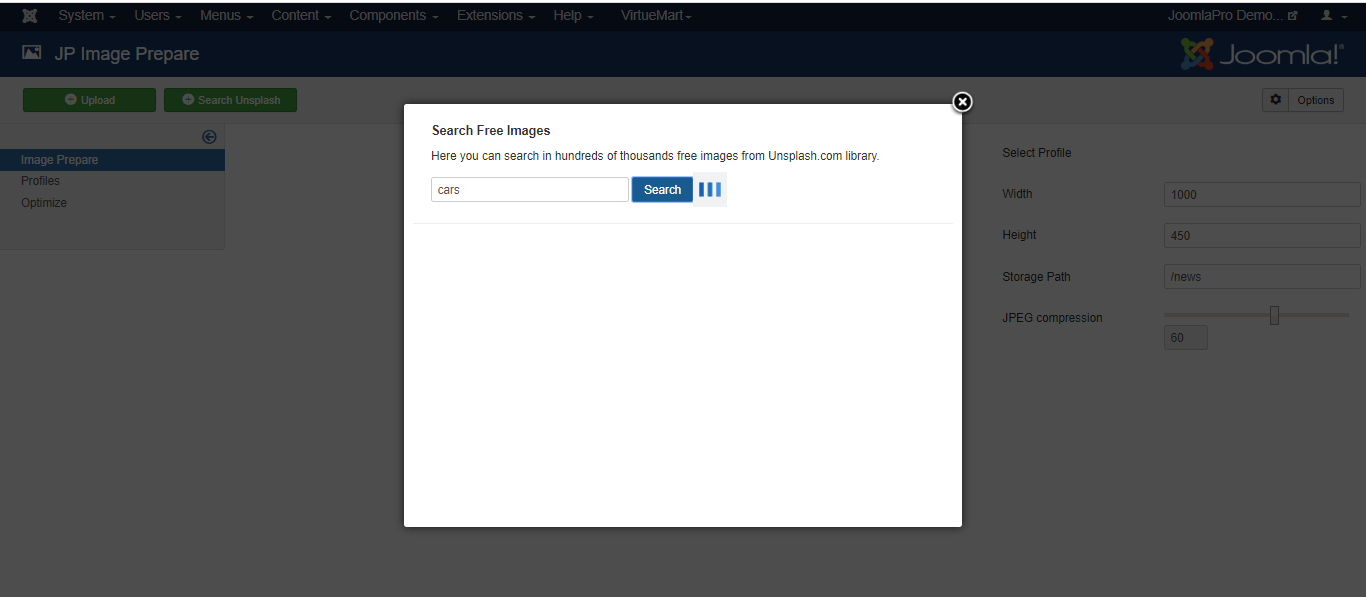
- Search beautiful free images and photos that you want using the keyword and select from the searched results.
Video Tutorial
