JP CE jDownloads List
Article Index
JP CE jDownloads List integrates the popular jDownloads component directly into YOOtheme Pro. It allows you to display files, categories, and downloads as styled lists — and even build fully custom download templates using YOOtheme’s dynamic content system.
How to install & use:
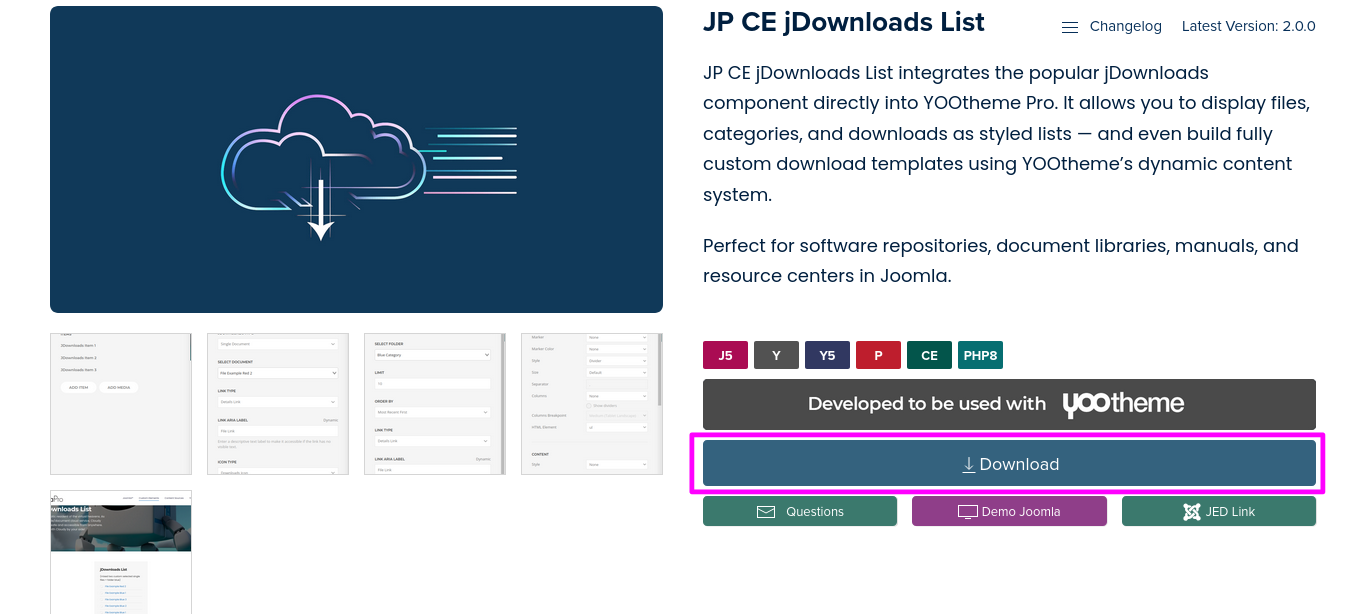
- Download JP CE jDownloads List custom element latest version plugin from product page.
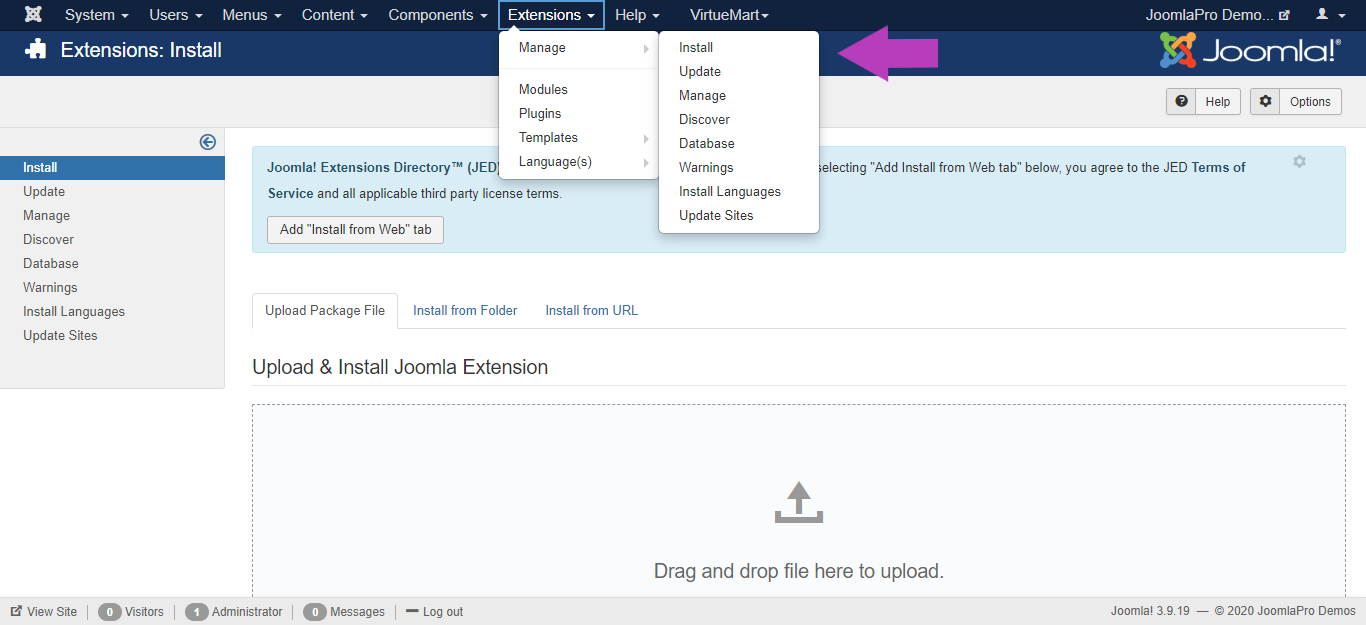
- You can just install the element using the "Joomla Extension Manager", click “Extensions -> Manage -> Install”(like you install any other plugin extension for Joomla).
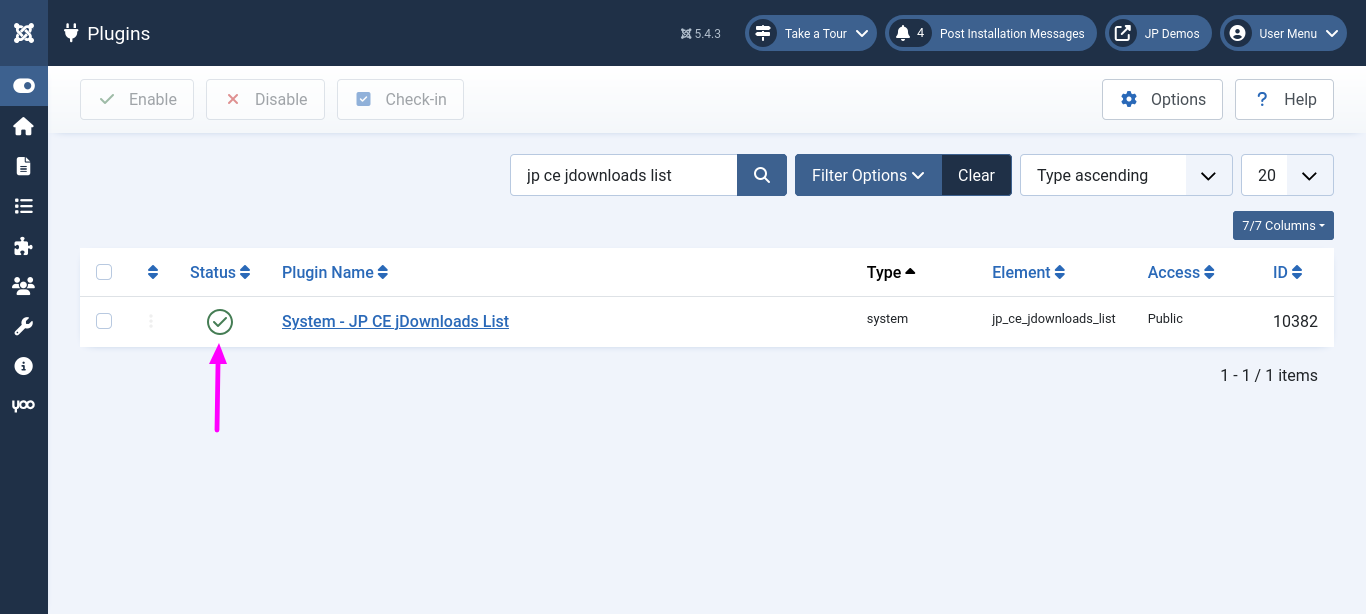
- From the main joomla menu click “Extensions -> Plugins”. Use the Search or Filter feature to find the installed JP CE jDownloads list and then make sure the installed plugin is enabled.
Add the new custom element:
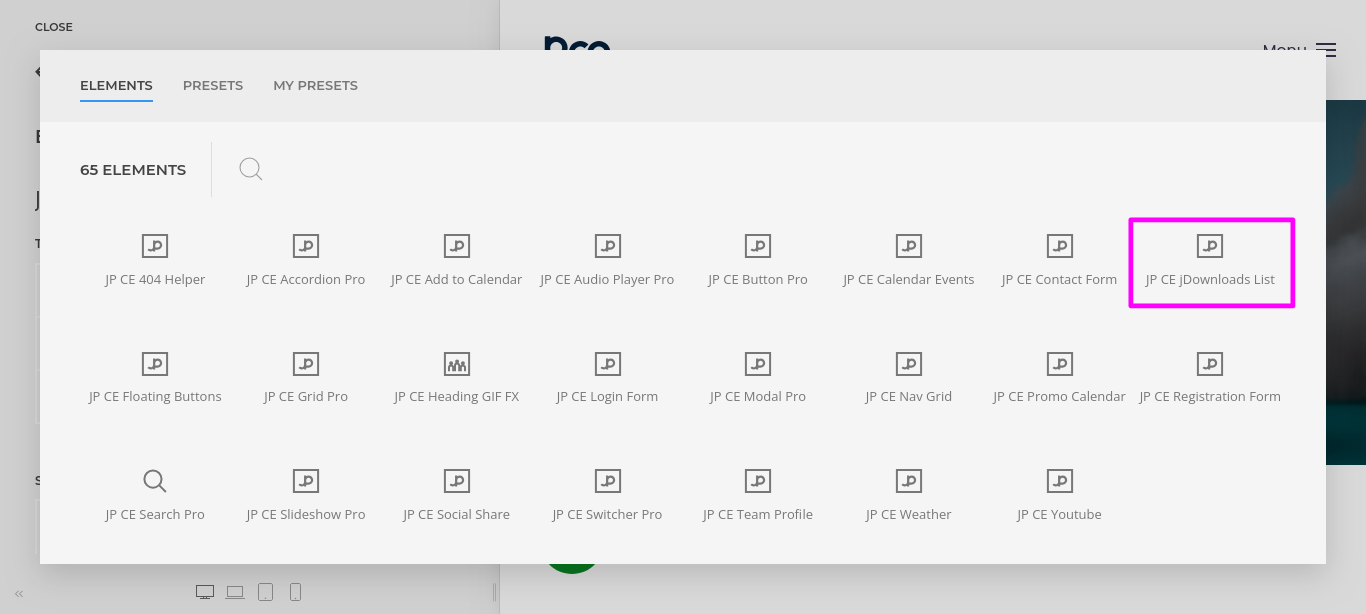
- Now open "YOOtheme" website builder inside the Joomla admin and edit the page you want to add the installed "JP CE jDownloads List" custom element.
- Then you can easily add installed "JP CE jDownloads List" custom builder element from Yootheme PRO Website Builder.
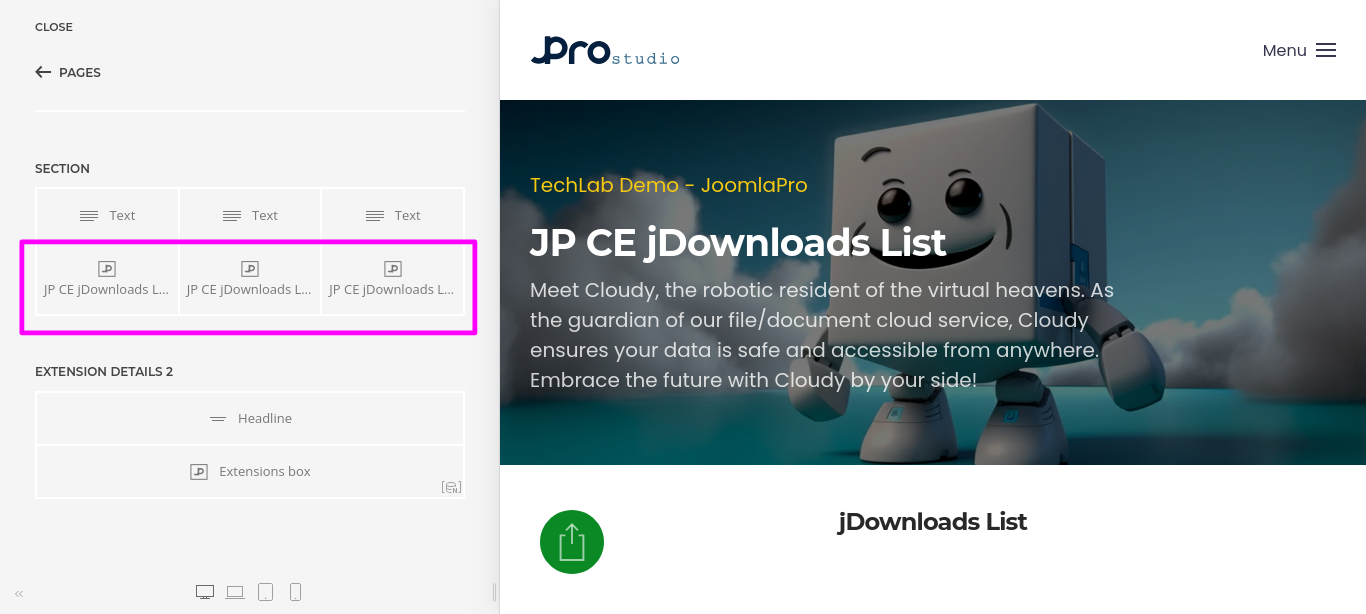
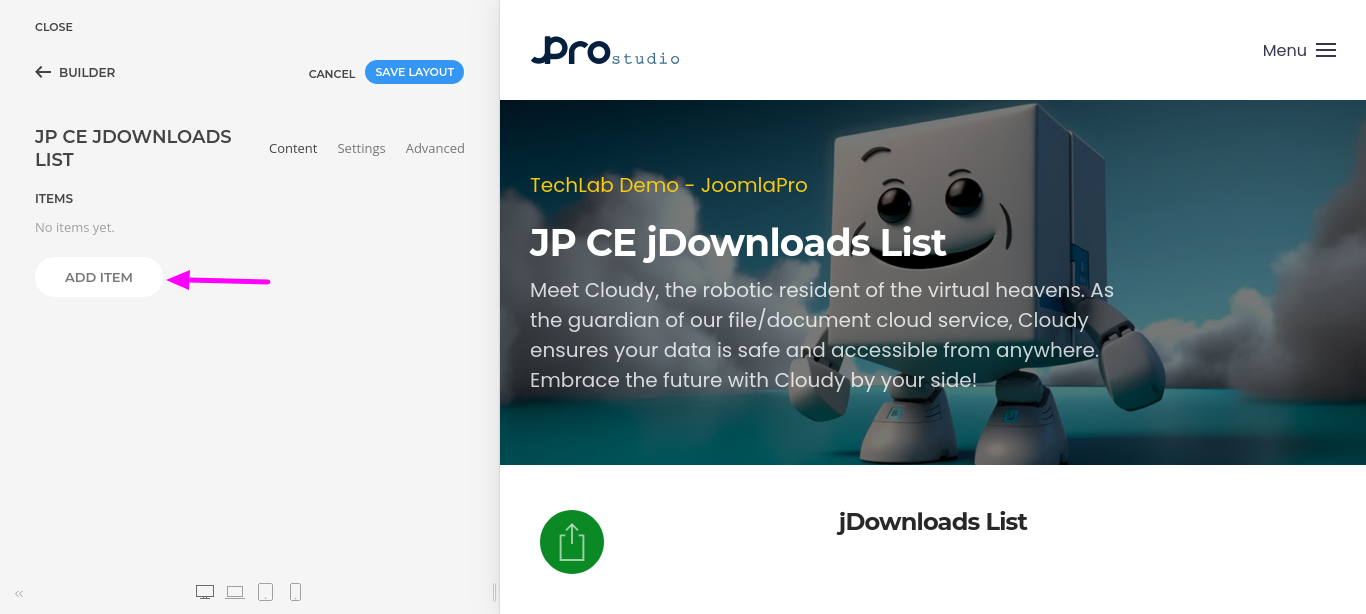
- To add jDownloads list, create a new item using "ADD ITEM" button.
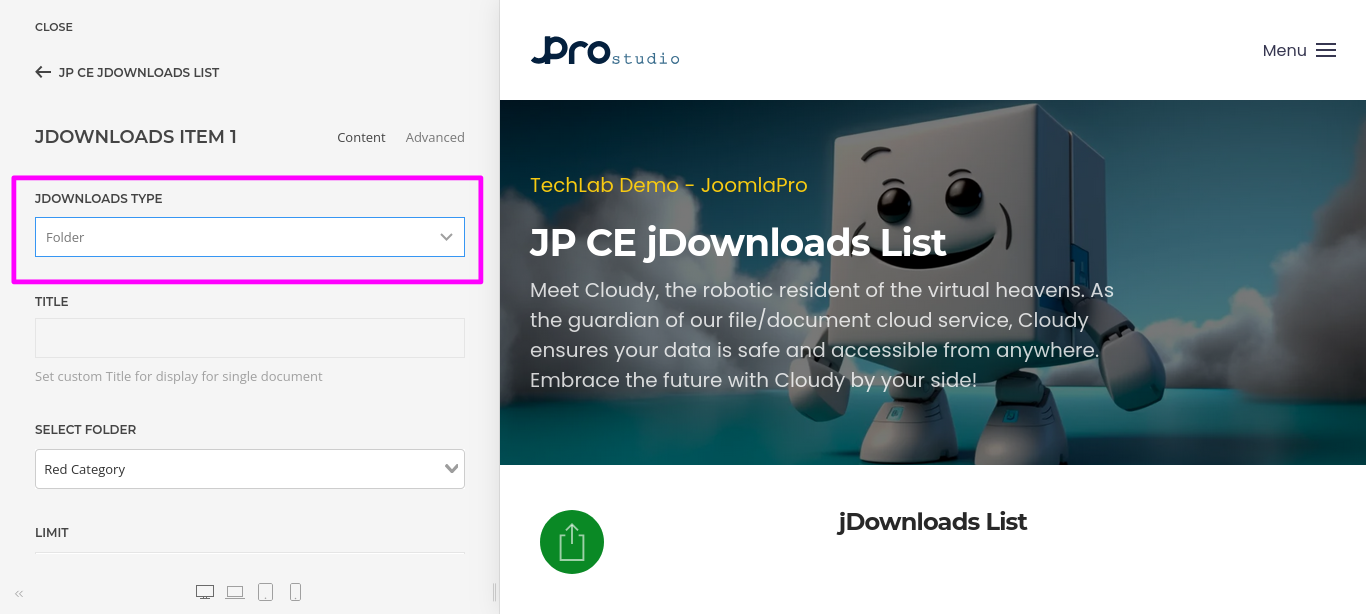
- Select the jDownloads TYPE from the options as "Single Document" or "Folder"
- "Single Document" - List the single selected document from Downloads
- "Folder" - List all the Downloads from selected category
- Then select the document from the jDownloads list.
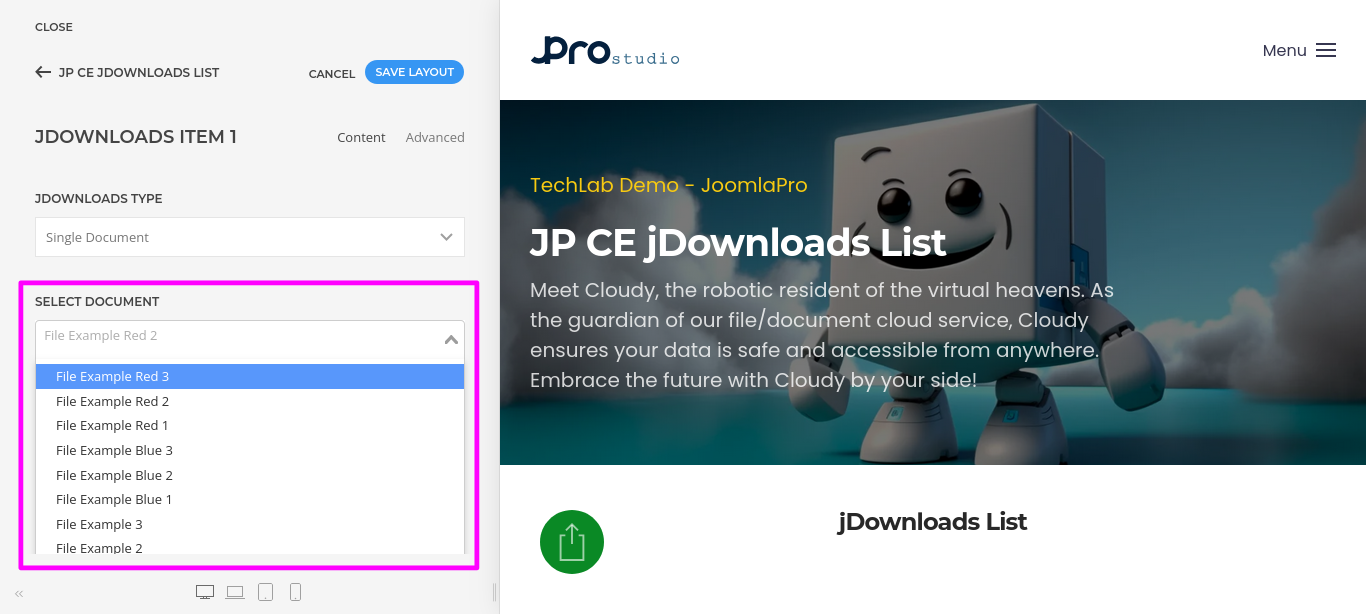
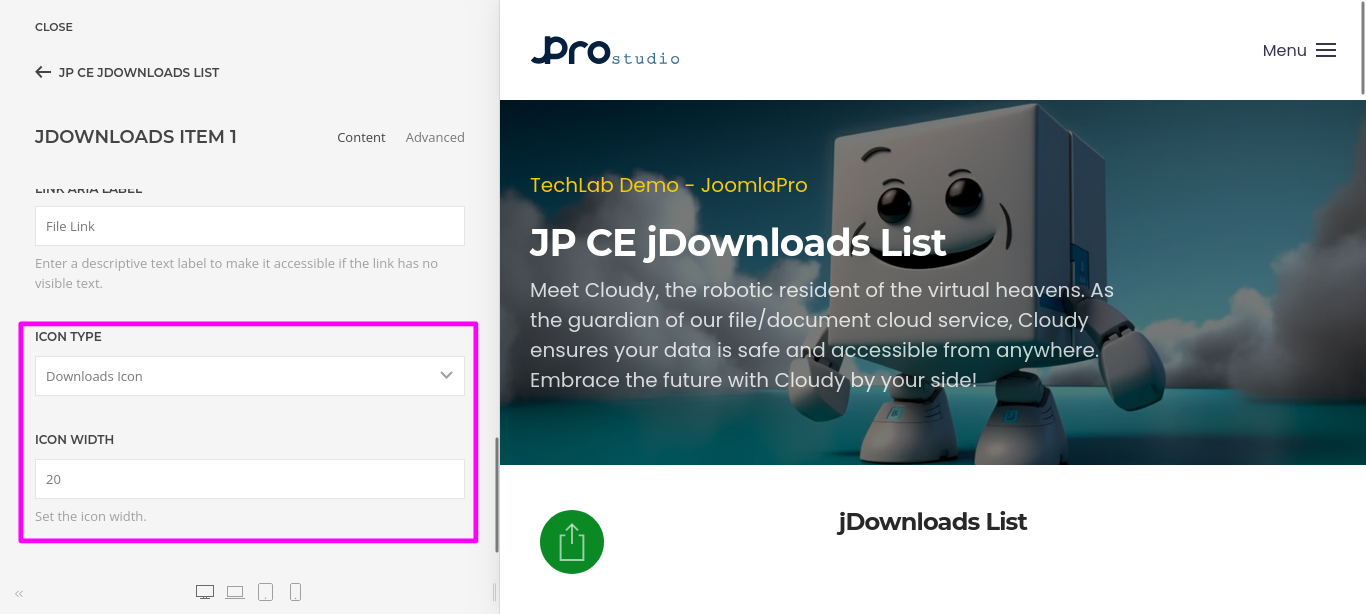
- Set the remaining settings for document icon based on your requirements and needs.
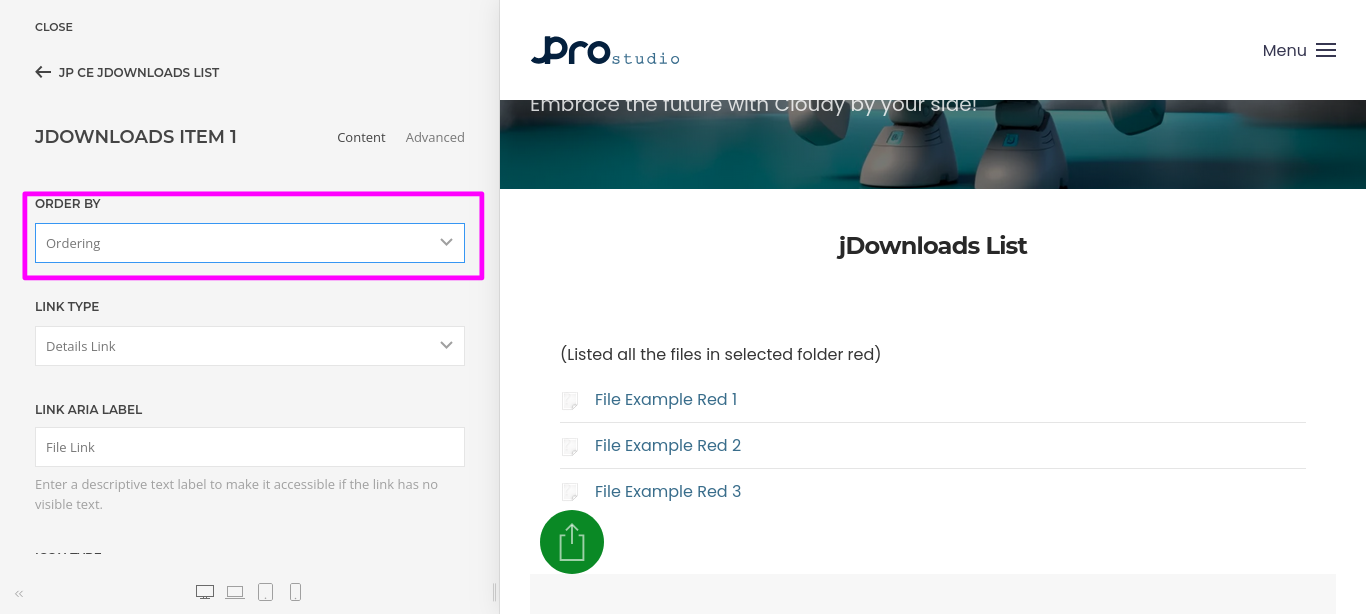
- If you select the jDownloads TYPE as "Folder", then select the category from the jDownloads categories list in "Select Folder" option and set the document list order method in "ORDER BY" settings as per your requirements.
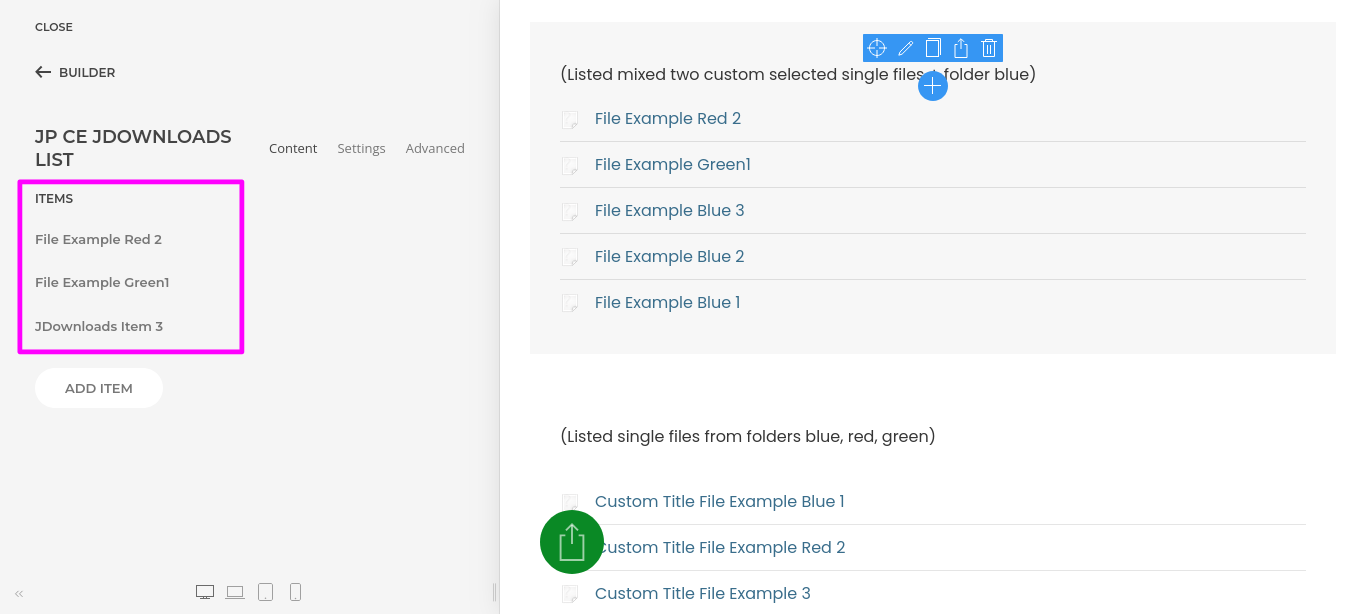
- Repeat the above steps and add more items as per your site needs.
- Once finished all the settings for the element, Click "Save layout" and "Close" the website builder.
Video Tutorial
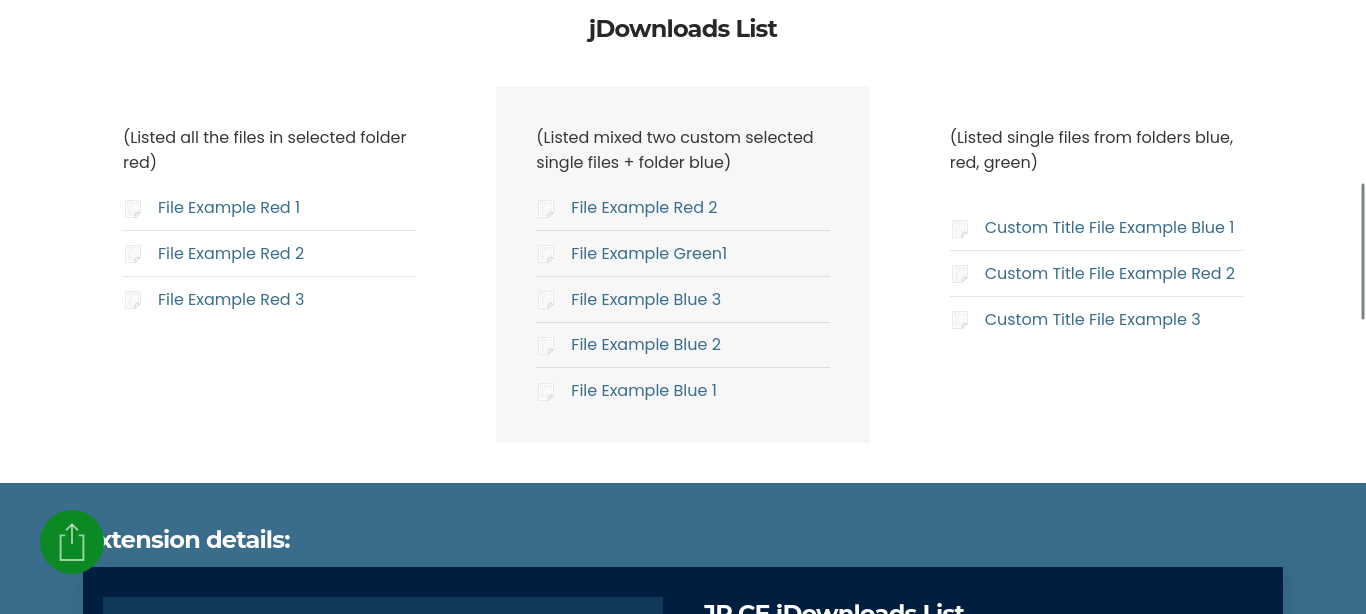
Have a look of "JP CE jDownloads list" output.